Keyboard Shortcuts
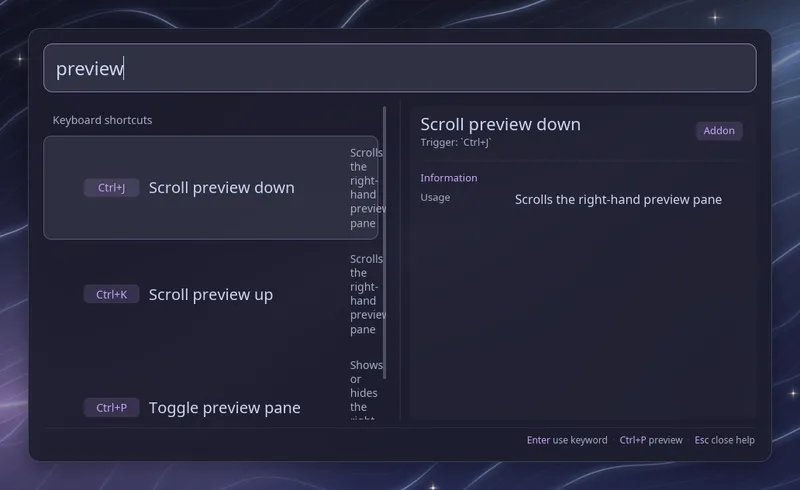
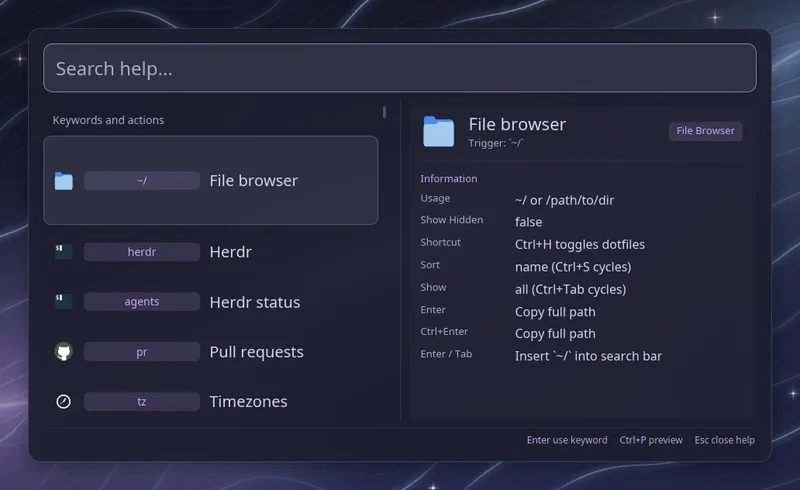
You can drive Raffi from the keyboard alone. If you forget a key, press
Ctrl+/ or type ? on its own, and Raffi lists the keywords and shortcuts
your config turns on. Typing narrows the list.
Everywhere
Section titled “Everywhere”| Key | What it does |
|---|---|
| Up / Down | Move through the results |
| Enter | Launch the selected entry, or start the addon whose keyword is selected |
| Right | With the cursor at the end, open actions for the selected result |
| Ctrl+Enter | Run the addon’s second action, such as typing a password or closing a browser tab |
| Tab | Complete the selected keyword or file path |
| Ctrl+Tab / Ctrl+Shift+Tab | Switch to the next or previous view (see below) |
| Alt+P / Alt+N | Go back and forth through what you searched before |
| Ctrl+P | Show or hide the preview pane on the right |
| Ctrl+J / Ctrl+K | Scroll the preview pane down or up |
| Ctrl+R | Reload the current list |
| F5 | Ask the cache service to fetch the current Slack view, browser history or cached Script Filter again, then show the result. Only offered while the service runs |
| Ctrl+Shift+F5 | Ask the cache service to fetch everything it caches again, from any view |
Ctrl+/, or ? typed alone | Open the help list. Escape closes it and puts your search back. If one of your keywords is ?, use Ctrl+/ |
| Ctrl+Alt+V | Enable or disable vim mode for this run |
| Escape | Close the help list, or close Raffi. In vim insert mode, return to normal mode instead |
Actions for a result
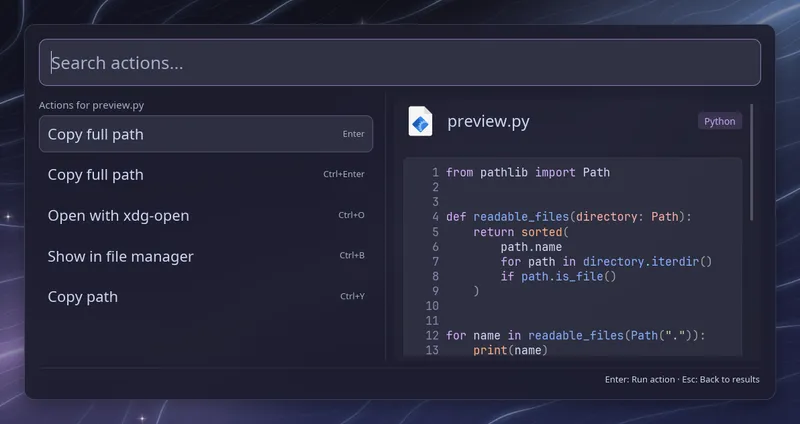
Section titled “Actions for a result”Press Right with the search cursor at the end to see the selected result’s available actions and shortcuts. Type to filter the actions, use Up/Down to choose one, and press Enter to run it. Escape returns to your original search and selection. Actions that require confirmation still ask before running.
Right keeps moving the cursor when you are editing the middle of a query or
have text selected. On the addon chips row it keeps selecting the next chip.
The footer shows → Actions when the selected result has actions.
Switching views with Ctrl+Tab
Section titled “Switching views with Ctrl+Tab”Wherever a list has more than one view, Ctrl+Tab moves to the next one and Ctrl+Shift+Tab goes back. The footer shows the name of the view you are on. Raffi uses this one key for every view switch, and no addon adds a key of its own for it.
| Where | Views, in order |
|---|---|
Main list, when main_view is set | All, then each source in the order you listed them (for example Launchers, Windows, Tabs), then All again |
| Window switcher | Windows, Workspaces |
| Clipboard history | All, Images, URLs |
| File browser | All, Files, Directories |
| Slack | Home, Unread, People |
| Audio switcher | All, Outputs, Inputs |
| Browser tabs | By browser, Recent |
| Bookmarks | All browsers, then each one |
| Browser history | Each browser found |
| Script filters | The views the script lists |
In the help list, Ctrl+Tab completes the selected keyword, like Tab.
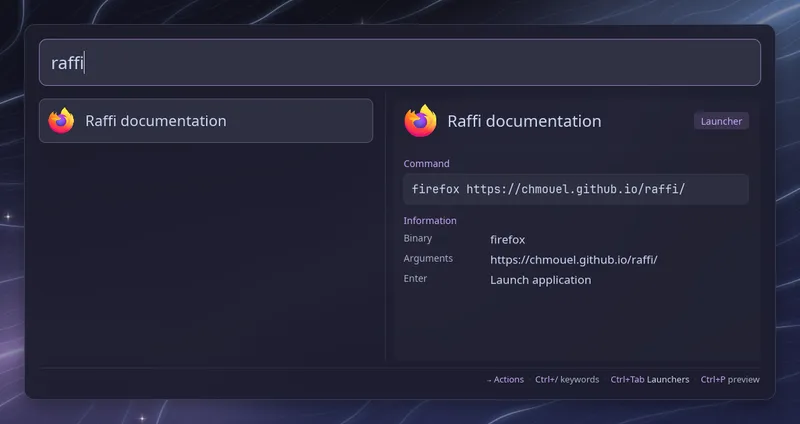
With main_view set and an empty search, Left and Right move along
the row of addon chips at the top, and Enter starts the one you picked.
The selected chip has an accent outline,
and the footer names what Enter will open. Press Down to select a result; the
footer then shows that result’s action.
Vim mode
Section titled “Vim mode”Vim mode is opt-in. Turn it on with
general.vim_mode: true, raffi --vim-mode, or Ctrl+Alt+V at runtime.
The command-line toggle does not rewrite your config. A NORMAL or INSERT
badge beside the search field shows the current mode.
When vim mode starts, it begins in normal mode. In normal mode the search field does not take typed text; use an insert key to focus it and type again.
| Key | What it does |
|---|---|
| j / k | Move to the next or previous result |
| h / l | Move to the previous or next plugin chip |
| g g | Jump to the first result |
| G | Jump to the last result |
| Enter | Activate the selection |
| i, a, A, / | Enter insert mode with the cursor at the end |
| I | Enter insert mode with the cursor at the start |
| q | Quit Raffi |
| Esc | In insert mode, return to normal mode; in normal mode, quit Raffi |
| Ctrl+Alt+V | Disable vim mode and return to normal typing |
All the other shortcuts above still work in normal mode, including Ctrl+Tab, Ctrl+P, Ctrl+R, Alt+P/N and the addon keys. Vault and bookmark search prompts always open in insert mode so you can type into them.
general: vim_mode: true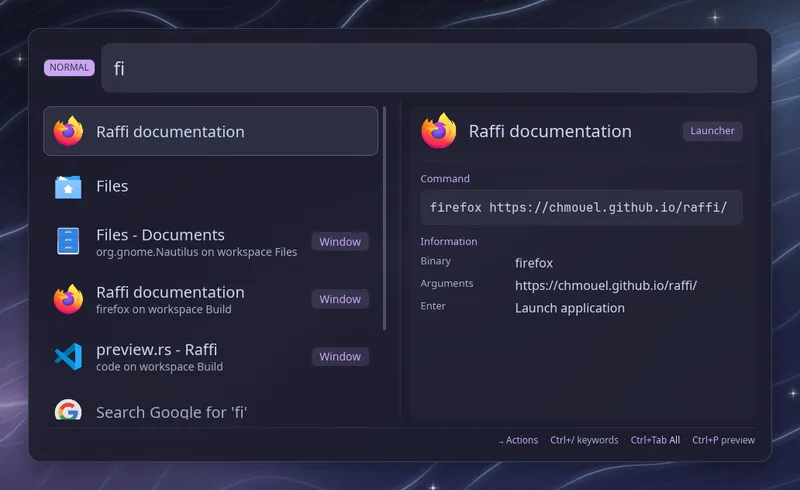
File browser
Section titled “File browser”| Key | What it does |
|---|---|
| Ctrl+H | Show or hide dotfiles |
| Ctrl+S | Sort by name, then modified date, then created date |
| Ctrl+O | Open the selection with xdg-open |
| Ctrl+B | Open the folder in your file manager with the entry selected |
| Ctrl+Y | Copy the path |
| Ctrl+Alt+Y | Copy the image itself |
| Backspace | When the path ends with /, go up one folder |
~/ or / after a / | Start the path again from your home folder or the root |
The last two rows come from the file browser’s
fido_style option,
which is on by default.
Clipboard and passwords
Section titled “Clipboard and passwords”| Key | What it does |
|---|---|
| Ctrl+D | Delete the selected item from the clipboard history; in the window switcher, close the selected window |
| Ctrl+U | Copy the username of a password entry |
| Ctrl+O | Copy the current one-time code of a password entry |