
Browser Tabs
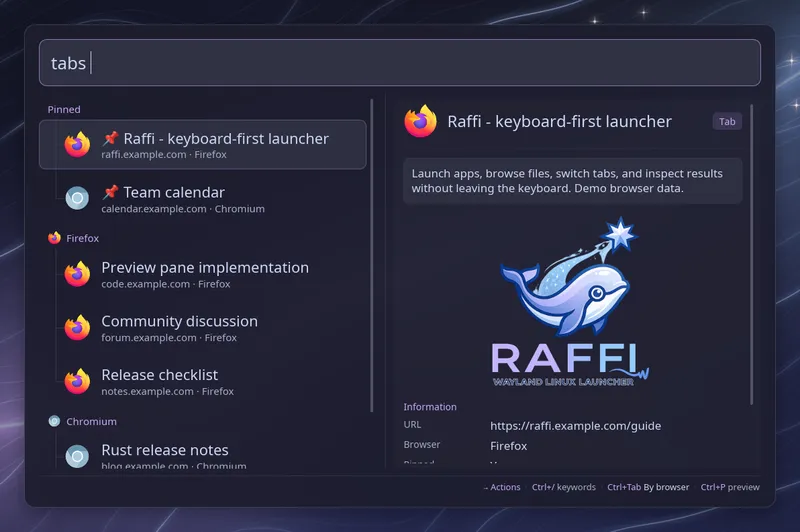
Type tabs (with the trailing space) to list the tabs open in your
browsers. Pinned tabs from every browser come first, under a “Pinned”
heading, followed by one section per browser, the one you used last on
top. With a single browser and no pinned tabs there are no headings.
Within each section, tabs playing sound come first, then the ones you used
most recently. The tab you are on goes last, so the one you used before it
comes first. Each row shows the tab title, the site and the browser, and
the preview shows when the tab was last used.
Ctrl+Tab switches to the Recent view: pinned tabs first, then the tabs of every browser in one list, the most recently used first. Ctrl+Tab again goes back to the sections. The footer shows the current view.
Words after the keyword filter by title or URL and show the best matches in one list, without the sections. Pasting a URL lists the tabs of that site first.
| Key | Action |
|---|---|
| Enter | Switch to the tab |
| Ctrl+Enter | Close the tab, keeping Raffi open |
| Ctrl+Tab | Switch between By browser and Recent |
After a tab closes, the next one is selected, so pressing Ctrl+Enter again closes several tabs in a row.
Pinned tabs have a 📌 before their title. Tabs playing sound are tagged “Playing”, and muted tabs “Muted”.
Raffi gets the tabs from the browser extension made for Vicinae, so there is nothing to build or load by hand.
-
Install the extension in your browser:
- Chrome, Chromium, Brave, Edge, Vivaldi and other Chromium browsers: Chrome Web Store
- Firefox, LibreWolf and Zen: Firefox Add-ons
-
Register Raffi with the browsers:
Terminal window raffi --install-browser-hostThis writes a
com.vicinae.vicinae.jsonnative messaging manifest for every browser that has a configuration directory, and prints each file. Run it again if you move theraffibinary. -
Restart the browser, or turn the extension off and on again. The extension’s popup then shows it as connected.
Each running browser starts its own raffi process in the background,
which keeps the tab list and answers the launcher. It stops when the
browser closes.
To remove the manifests again:
raffi --uninstall-browser-hostOnly manifests Raffi installed are removed.
Setting up from the launcher
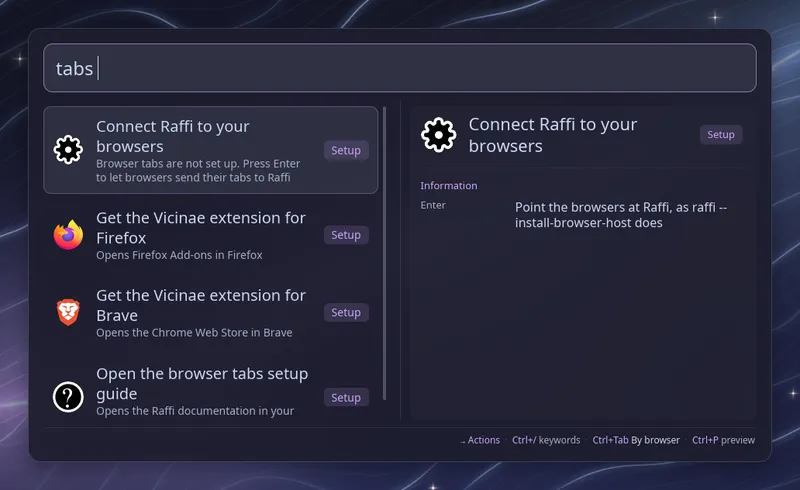
Section titled “Setting up from the launcher”When no browser answers, tabs lists the setup steps instead, and Enter
runs the one under the cursor:
- “Connect Raffi to your browsers” writes the manifests, as
--install-browser-hostdoes, while Raffi stays open. It shows up when tabs are not set up yet or the manifests point to araffibinary that has since moved. When the browsers send their tabs to Vicinae or another program, the row offers to take over instead and asks for a second Enter. - “Get the Vicinae extension for Firefox” (or Chrome, Brave, and so on) opens the extension’s store page in that browser. Raffi offers one row per supported browser it finds on your machine. When a profile of that browser already has the extension, the row opens the browser instead.
- “Open the browser tabs setup guide” opens this page.
Vicinae
Section titled “Vicinae”The extension talks to a single program, so Raffi and Vicinae cannot both
receive the tabs. When a manifest already starts Vicinae, or anything else
Raffi did not install (a symbolic link included), --install-browser-host
leaves it alone and says so; add --force to replace it. Vicinae writes its manifest back each time it starts, so with
Vicinae running the tabs go to Vicinae.
Site icons
Section titled “Site icons”Each tab shows the icon of its site. Raffi first looks in the favicon
database of the browser profile (favicons.sqlite for Firefox and its
forks, Favicons for Chromium browsers), read only and without waiting for
the browser to release it. Sites with no stored icon are downloaded in the
background once the list is shown, the same way Vicinae does, and the list
updates when they arrive. Icons are cached in ~/.cache/raffi/favicons, and
a site with no icon is retried after a week. Tabs that are not web pages,
such as about: pages or localhost, keep the browser icon, as do sites
whose only icon is an SVG.
The download service sees the domains of your open tabs. It defaults to
twenty-icons.com; set favicon_service to google to use Google’s service
instead, or to none to keep everything local:
addons: browser_tabs: favicon_service: noneA site visited for the first time may only get its icon on a later opening, because the browser writes new icons to its database in batches.
Page preview
Section titled “Page preview”With the preview pane open (Ctrl+P), the selected tab shows the description
and image of its page, like a link preview in a chat app. For Firefox and
its forks Raffi reads them from the browser history first. Otherwise, once
the selection rests on a tab, Raffi fetches the page itself and reads its
og:description and og:image tags. That request carries none of your
browser cookies, so a page behind a login shows what it shows logged out.
Fetched details are cached for a day in ~/.cache/raffi/previews, and
images are kept there until they go a week without being shown.
Only pages on named hosts that resolve to public addresses are fetched,
redirects included, never addresses such as 192.168.1.1 or names on your
local network. Images are scaled down when saved, and SVG images are not
shown. With favicon_service: none nothing is downloaded: tabs show
only what Firefox stored, without its image.
Switching windows
Section titled “Switching windows”The extension switches the tab and asks the browser to bring its window forward, but on Wayland compositors usually ignore that request. On Hyprland, niri and sway, Raffi then focuses the browser window showing the tab itself, waiting up to a second for the window title to follow. In other sessions the tab is switched inside the browser and the window stays where it is.
To open the list from a key binding, pass the keyword as the initial query:
raffi -i "tabs "In the main list
Section titled “In the main list”To find tabs without typing tabs first, add browser_tabs to
general.main_view. Typing
gmail then lists the matching tabs next to your launchers.
Configuration
Section titled “Configuration”addons.browser_tabs.enabled boolean (default: true)
Enable or disable the browser tabs list.
addons.browser_tabs.trigger string (default: tabs)
Keyword that opens the list. Type it followed by a space. Web searches with the same keyword take precedence.
addons.browser_tabs.favicon_service twenty | google | none (default: twenty)
Where to download site icons the browser has not stored itself. twenty
uses twenty-icons.com and google uses Google’s favicon service, so the
domains of your open tabs are sent to that service. none keeps Raffi
offline: it uses only the icons found in the browser profiles, and the page
preview of the selected tab is not fetched from the site either. See
Site icons and Page preview.
addons.browser_tabs.close_on_action boolean (default: true)
Close Raffi after switching to a tab. Leave it unset to follow
general.close_on_action. Closing a tab with Ctrl+Enter keeps Raffi open
unless this is set to true here.
addons: browser_tabs: trigger: "t" favicon_service: none