
Bookmarks
Type bm (with the trailing space) to list the bookmarks of your
browsers. Raffi reads them straight from the browser profiles, so there is
no extension to install, and the browser does not need to be running.
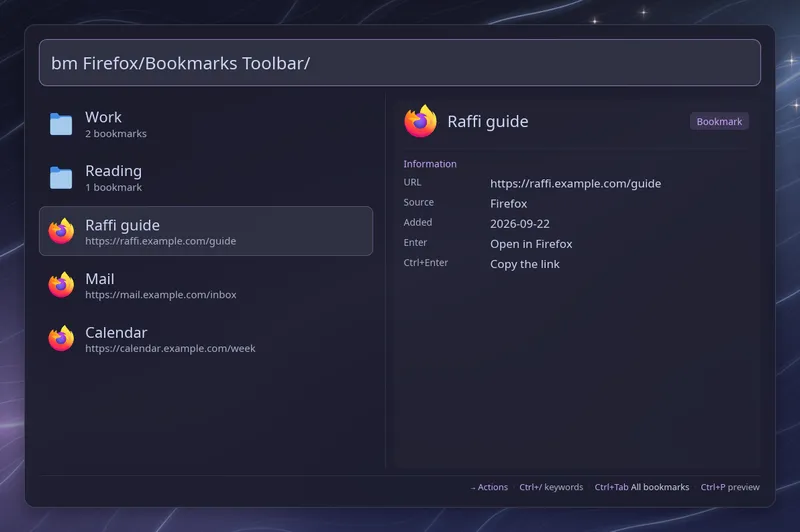
Words after the keyword search every bookmark, in every folder, by title, address or folder name. Each row shows the folder it sits in and the site.
| Key | Action |
|---|---|
| Enter | Open the bookmark, show the folder, or ask what to search |
| Tab | Show the folder |
| Backspace | Right after a folder’s /, go back to its parent |
| Ctrl+Enter | Copy the link |
| Ctrl+Tab | Show one browser profile at a time |
| Ctrl+R | Read the bookmarks again |
Folders
Section titled “Folders”The folder you are in is part of the query, as in the
file browser. With several profiles, the list starts
with one folder per profile. Enter or Tab on a folder adds it to the query,
so bm Firefox/Bookmarks Toolbar/ lists that folder, its subfolders first.
Words typed after the last / search everything below that folder. Folder
names match whatever their case, and you can type the path yourself.
Backspace on the / that ends the path goes up one folder and selects the
folder you came from.
Ctrl+Tab goes from all profiles to each profile in turn, and the footer
shows which one is on. A profile shown alone starts at its own folders, such
as Bookmarks Toolbar or Bookmarks bar.
Search bookmarks
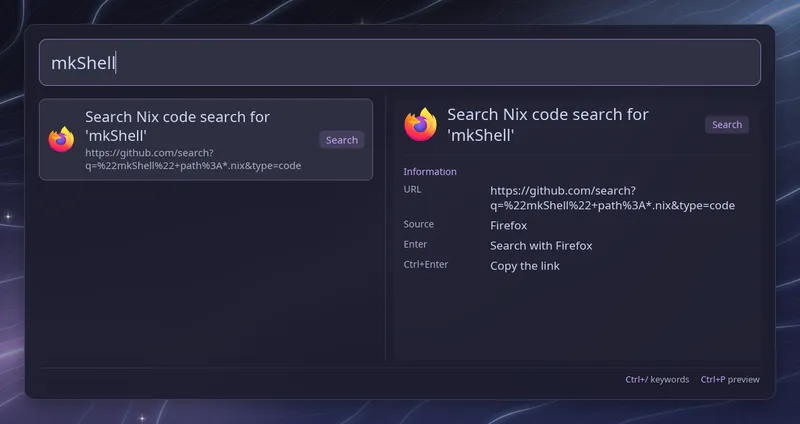
Section titled “Search bookmarks”A bookmark whose address holds %s, such as
https://github.com/search?q=%s, is a search bookmark, as in Firefox. Its
row has a Search badge, and Enter asks for what to search instead of opening
the address as it is. The search field then takes the search term, and Enter
opens the bookmark with the term in place of %s. %S takes the term as
typed, without escaping it for an address. Ctrl+Enter copies the address
with the term filled in, and on the bookmark row itself, the address as
saved. Escape, or Backspace once the term is empty, goes back to the list.
A Firefox bookmark can also have a keyword. Type bm, the keyword, a space
and the term, as in bm nixsearch flake, to skip the list and search
straight away. When bookmarks are part of the
main list, the keyword works without bm:
nixsearch flake. A trigger or addon keyword with the same name comes
first. Raffi learns the keywords when it reads the bookmarks, at start when
they are in the main list, otherwise the first time you open bm.
Keywords also find their bookmark in the list. Raffi does not support Firefox keywords that send their search as form data, nor the search engines of Chromium browsers, which are not bookmarks.
Browsers and profiles
Section titled “Browsers and profiles”Raffi looks for every profile that has bookmarks in the Firefox family (Firefox, LibreWolf, Zen, Floorp, Waterfox) and the Chromium family (Chrome and its beta and dev channels, Chromium, Brave, Edge, Vivaldi, Opera, Thorium). Each profile is listed under the browser’s name, followed by the profile name when a browser has several.
Firefox keeps its latest changes in a separate log file until it closes, so Raffi reads a private copy of the database and that log, then deletes the copy. Bookmarks added a moment ago therefore show up while Firefox is still open.
Enter opens a bookmark in the browser and profile it comes from. When that
browser’s program is not found, for example when it is installed as a
Flatpak, the link goes to your default browser through xdg-open.
On Hyprland, niri and sway, Raffi then focuses the browser window it last
used, where the link opens, starting the browser when needed.
Choosing sources and browsers
Section titled “Choosing sources and browsers”List sources to choose what is read; this replaces the detection.
addons: bookmarks: open_with: brave sources: - browser: firefox profile: default-release folder: Bookmarks Toolbar/Work name: Work open_with: chrome - browser: chromium - path: ~/sync/Bookmarks open_with: ["qutebrowser", "--target", "tab", "{url}"]browserreads every profile of that browser, or onlyprofile, given by its name or directory.pathreads a ChromiumBookmarksfile, a Firefoxplaces.sqlite, or a profile directory holding one. Addbrowserto open its links in that browser’s profile.folderlists only that folder of the source.nameis the label the source shows in the list and the footer.
open_with picks what opens the links: a browser (firefox, librewolf,
zen, floorp, waterfox, chrome, chrome-beta, chrome-dev,
chromium, brave, edge, vivaldi, opera, thorium) or a command,
where {url} stands for the link. Set on a source, it applies to that
source; set on bookmarks, to every source without its own. A browser opens
the bookmark in the profile it comes from only when it is the source’s own
browser. When the chosen browser or command is not installed, its rows are
greyed out and say so.
A source that cannot be read, or a profile or folder that does not exist, shows as a row when the list opens.
Site icons
Section titled “Site icons”Bookmarks show the icon of their site, found the same way as for
browser tabs: first in the browser profile,
then downloaded through the service set by browser_tabs.favicon_service.
Set it to none to keep everything local.
In the main list
Section titled “In the main list”To find bookmarks without typing bm first, add bookmarks to
general.main_view.
Typing rust docs then lists the matching bookmarks next to your
launchers. Folders only show in the bm list.
Configuration
Section titled “Configuration”addons: bookmarks: trigger: "b" close_on_action: falseSee the addon reference for every field.