
Clipboard History
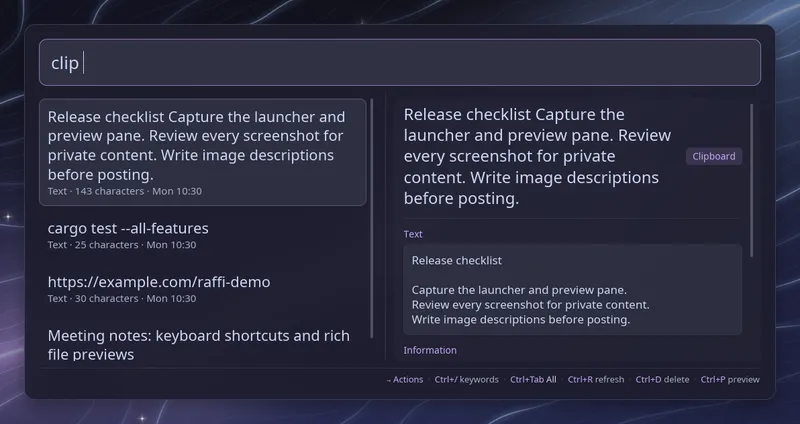
Raffi can browse the clipboard history kept by CopyQ. CopyQ records and stores the history. Raffi gives you a keyboard-driven list with search, previews, and copy or paste of any past item.
Install CopyQ and keep it running. Raffi talks to it through the copyq
command, so the binary must be on your PATH. Raffi never reads CopyQ’s
files directly, and it does not record anything itself.
Raffi then enables the addon on its own. To keep it on even when CopyQ is not
running yet, or to turn it off, set enabled:
addons: clipboard: enabled: trueType clip (with the trailing space) to open the history. Typing cl offers
the keyword as a suggestion. To open it straight from a key binding, pass the
keyword as the initial query:
raffi -i "clip "Browsing and searching
Section titled “Browsing and searching”An empty query lists the whole history, newest first, in CopyQ’s order. Words after the keyword filter it. Every word must appear somewhere in the item’s text or file names, case-insensitively. Items that start with the exact phrase come first, then items containing the phrase, then items containing all the words in any order.
Raffi reads the history in batches of 400 items, so large histories show
results right away and the footer reads scanning N/M until the scan ends.
Search covers the full text of every item, not only what fits in the row.
Raffi browses the tab CopyQ uses for the clipboard (its clipboard_tab
setting, or the first tab). If the history changes during a scan, Raffi starts
the scan over. Press Ctrl+R to reload the list at any time.
Text entries shorter than three characters, such as a stray # or a single
letter, are hidden. Surrounding spaces and newlines don’t count. Change the
limit with min_chars, or set it to 0 to list everything. Images and files
are always listed.
Copy times
Section titled “Copy times”Each row shows when the item was copied: the time for today, the weekday for the past week, and the date for anything older. The preview pane shows the full date and time.
CopyQ does not record copy times by default. Add the “Show Copy Time” command from the CopyQ command examples or from copyq-commands (in CopyQ, press F6 and paste it). Raffi reads the time from either version. Items copied before you add the command show no time.
Images and URLs
Section titled “Images and URLs”Press Ctrl+Tab to go from all items to images only, then to URLs only,
then back to all items. Ctrl+Shift+Tab goes the other way, and the footer
shows the current view. More on Ctrl+Tab. A URL is a text item that holds nothing but a link
with a scheme, such as https://..., file:///... or mailto:....
Your choice holds while you type, and Raffi lists everything again the next time you open the browser. Search words still apply to images, though most images carry no text to match.
Previews
Section titled “Previews”Press Ctrl+P to toggle the preview pane. It shows:
- multiline text, cut to the first 8 KiB or 100 lines
- images, scaled to fit, with their pixel size
- file lists, with missing files marked
- the formats the item holds and their sizes
Rich text (HTML) items preview as plain text. Raffi never renders HTML or loads remote content. Images larger than 32 MiB or 40 megapixels are not previewed, though you can still copy them.
Previews stay in memory while the window is open and are never written to disk.
Actions
Section titled “Actions”| Key | Default action | Description |
|---|---|---|
| Enter | copy | Put the item back on the clipboard |
| Ctrl+Enter | hypr_paste | Copy, then paste into the window you came from |
Change them with action and secondary_action. Both accept copy and
hypr_paste.
Copying goes through CopyQ, which publishes every format the item holds, so HTML keeps its formatting and images and file lists paste as such. Raffi checks that the clipboard holds the item before closing. If the item disappeared from the history since the list was loaded, Raffi shows an error and leaves the clipboard alone. CopyQ moves a copied item to the top of its history.
hypr_paste needs Hyprland, as described in
Text Snippets. Raffi remembers the
window that had focus when it opened, copies the item, closes, and sends Ctrl+V
(Ctrl+Shift+V in terminals) once that window has focus again. If that window
closed, or you are not on Hyprland, Raffi shows an error and does not fall back
to copying.
Privacy
Section titled “Privacy”Clipboard queries are saved in Raffi’s search history and in the last-query
cache, so Alt+P and --last-query can bring them back. Debug logs still show
clip <redacted> in place of the query. Previews are discarded when the
window closes.
Configuration
Section titled “Configuration”addons.clipboard.enabled boolean (default: unset)
Turns the clipboard browser on or off. When unset, it is on if CopyQ is running as Raffi starts.
addons.clipboard.trigger string (default: clip)
Keyword that opens the history. Type it followed by a space.
addons.clipboard.min_chars integer (default: 3)
Hide text entries shorter than this many characters, not counting
surrounding spaces and newlines. 0 lists everything. Images and files are
always listed.
addons.clipboard.backend string (default: copyq)
Clipboard manager to read from. copyq is the only supported value.
addons.clipboard.action copy | hypr_paste (default: copy)
What Enter does: copy puts the item back on the clipboard with all its
formats, and hypr_paste also pastes it into the window you came from on
Hyprland.
addons.clipboard.secondary_action copy | hypr_paste (default: hypr_paste)
What Ctrl+Enter does. Accepts the same values as action. Outside Hyprland
a hypr_paste action shows an error and does not copy.
addons.clipboard.close_on_action boolean (default: true)
Close Raffi after copying an item. Leave it unset to follow
general.close_on_action. hypr_paste always closes Raffi so it can paste.
addons: clipboard: enabled: true trigger: clip min_chars: 3 backend: copyq action: copy secondary_action: hypr_pasteTroubleshooting
Section titled “Troubleshooting”“CopyQ is not running” means the copyq command could not reach the CopyQ
server. Start CopyQ, then press Ctrl+R.
“CopyQ is not installed” means Raffi could not find the copyq command.
“Clipboard history kept changing” appears when items keep arriving during a scan. Press Ctrl+R to try again.