
Bluetooth
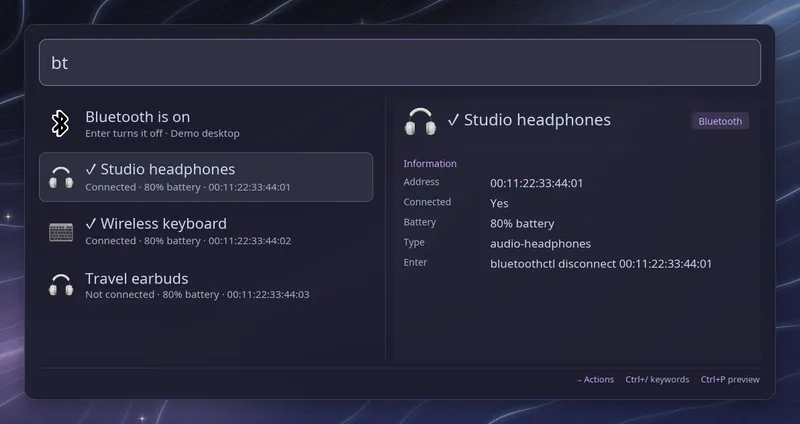
Type bt (with the trailing space) to see Bluetooth. The first row always
turns Bluetooth on or off. When Bluetooth is on, your paired devices follow,
each with its name, its address, its battery level when the device reports
one, and whether it is connected. Connected devices have a check mark. When
Bluetooth is off, only the first row is shown.
Words after the keyword filter the devices, so bt buds or bt keyboard
narrows the list. The first row stays in place whatever you type.
| Row | Enter |
|---|---|
| First row | Turn Bluetooth on, or off when pressed twice |
| A device | Connect it, or disconnect it when pressed twice |
Connecting can take a few seconds. The row says “Connecting…” meanwhile,
Raffi stays open, and the list refreshes once it is done. When an action
fails, an error row appears at the top of the list. Set
close_on_action: true to close Raffi after each action instead.
The list is read within three seconds. A device that hasn’t answered by then
shows “State unknown” and can’t be used until you open the list again.
Pairing new devices is not supported; use your desktop’s Bluetooth settings
or bluetoothctl for that. Queries typed in this mode are saved in the search
history when you run an action.
To open the list from a key binding, pass the keyword as the initial query:
raffi -i "bt "Configuration
Section titled “Configuration”addons.bluetooth.enabled boolean (default: true)
Set it to false to turn the Bluetooth list off.
addons.bluetooth.trigger string (default: bt)
Keyword that opens the Bluetooth list. Type it followed by a space. A script filter, text snippet source or web search with the same keyword takes precedence.
addons.bluetooth.close_on_action boolean (default: false)
Close Raffi after an action. When unset, general.close_on_action applies,
and Raffi stays open and refreshes the list if that is unset too.
addons: bluetooth: trigger: "blue" close_on_action: true