
The Main List
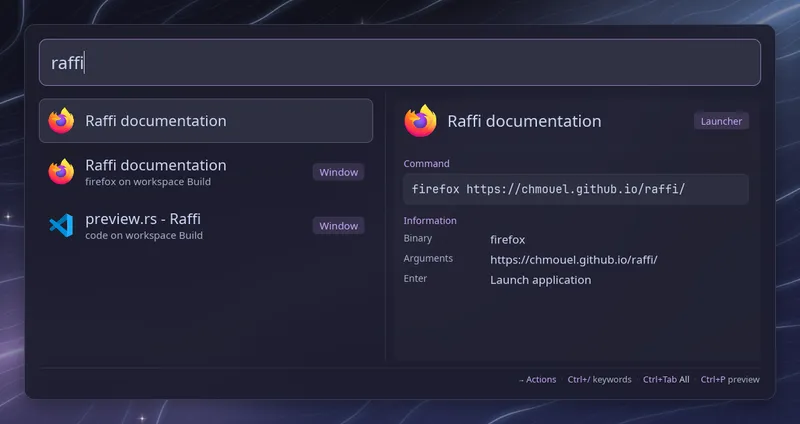
The main list is what you see when you open Raffi and type without a keyword.
It can hold your apps and entries, and also open windows, browser tabs,
passwords, snippets and other addon results, so typing gmail finds a
matching browser tab or bookmark without typing its keyword first.
Choosing what it shows
Section titled “Choosing what it shows”The main_view setting lists the sources, in the order you want them:
general: main_view: - launchers - browser_tabs - windows - kill - slack - text_snippets."Emails" - script_filters."GitHub Issues"To include every enabled main-list source automatically, use all:
general: main_view: [all]This includes launchers, browser history, all configured snippet sources and script filters, and the enabled addons listed below. Unavailable addons stay hidden. Slack uses its default view, not a separate group for each sub-view. The usual five-row limits, keyword behavior and chip-only sources still apply. Script filters run as you type, so use an explicit list if some should only run through their keyword.
You can put sources before all to bring them first, for example
main_view: [windows, all]. Duplicates are skipped, and newly configured sources
are included automatically on the next launch.
When main_view is omitted, Raffi picks a set for you: launchers,
windows, browser_tabs, bookmarks, system, media, audio,
bluetooth, pass,
clipboard, bitwarden, terminal and emoji. Each one stays hidden when
its compositor or tool is missing.
These sources are accepted:
launchers: installed apps and your custom entriesbrowser_tabs,bookmarks,browser_history,windows,system,media,audio,bluetooth,kill,passandslackslackshows your unread or recently opened channels and direct messages on an empty query (muted and unused channels stay hidden until you type or focus Slack with Ctrl+Tab) and searches Slack messages when you type. You can also list specific Slack sub-views directly:slack.unread,slack.threads(orslack.unread_threads),slack.activity,slack.actions,slack.directs(orslack.dms), andslack.channels. Sub-views filter their loaded rows as you type instead of running message search. Enable and configure the Slack addon underaddons.slack.text_snippets.<name>andscript_filters.<name>, where<name>is the source’snamefield. Theaddons.<type>."<name>"form used by fallbacks works too.clipboard,bitwarden,terminalandemoji, which only add a shortcut chip to the empty search (see below) and never add rows to your results.clipboardshows while the clipboard addon is on,bitwardenwhenrbwis installed, andterminalwhen a terminal is found.
Typing a keyword (tabs gmail) still opens the addon’s full list, and
fallbacks still show below the main list. Unknown or disabled sources print a
warning when Raffi starts.
How results are arranged
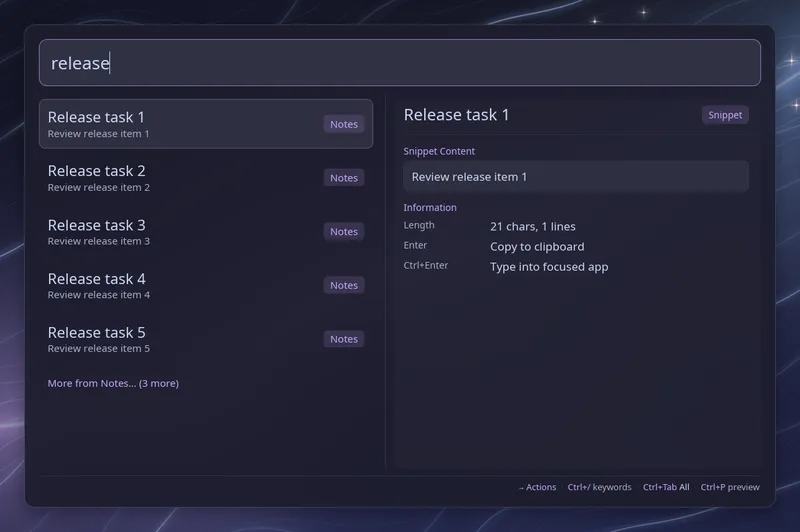
Section titled “How results are arranged”When you type, apps and local addon rows share one relevance-ranked list.
An exact app or tab title ranks above a match in a subtitle or URL, regardless
of which source comes first in main_view. Matching the domain of a pasted
URL ranks first. Within equally relevant matches, Raffi uses your configured
source order, then past use within that source. Each addon contributes at most
5 of its best matches; apps have no such limit. Addon rows carry a badge
showing their source. If more loaded matches are available, a More from …
row follows that source’s last visible result and shows how many are hidden.
Select it and press Enter, or click it, to see all matches from that source
with your search preserved. Ctrl+Tab still cycles between source views.
Search is case- and accent-insensitive and matches words in any order across
fields. Titles and executable names also accept word-initial abbreviations
and short, closely spaced letter sequences. Other fields require literal
matches. An app’s command arguments, scripts and routing alias are not
searched. Browser history is the exception: it keeps literal substring
matching on lowercased text, so accents still have to be typed there
(cafe does not find a page titled Café). Snippet keywords and pasted URL
domains keep their special rules. Script filter results and Slack server
searches stay in their own blocks after the ranked local rows, before
fallbacks. They are not rescored by Raffi.
Pressing Enter on an addon row switches to that addon with your query (the
input becomes tabs gmail, for instance) and runs the row there.
Confirmations, lists that stay open after an action, and usage ranking work
the same as in the addon itself.
The empty search
Section titled “The empty search”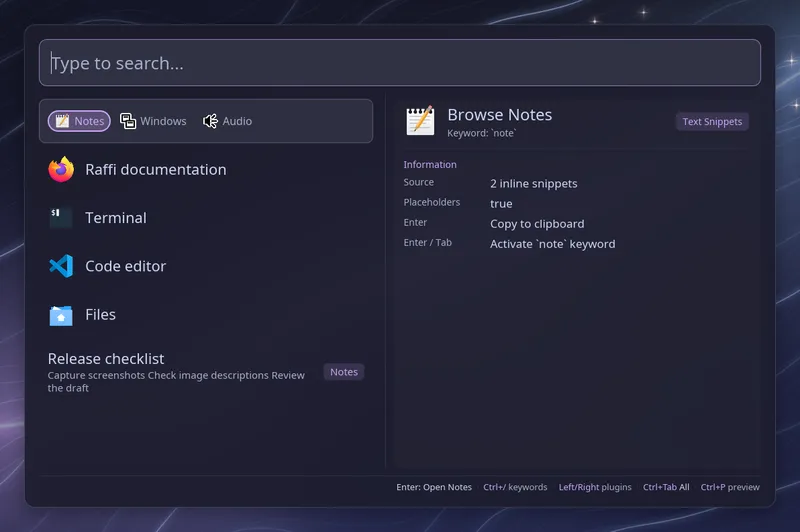
Before you type, the top of the list is a row of chips, one for each source
in main_view that works on this machine, such as Tabs, System, Clipboard or
Emoji. Left and Right pick a chip, and Enter, Tab or a click types its
keyword. Because of that, Enter on an empty search arms the first chip instead
of opening the first app; press Down or start typing for that. When the chips
don’t all fit, ‹ and › at the ends show there are more. browser_tabs,
browser_tabs, bookmarks, browser_history, windows and media drop
their chip when there is nothing to show.
main_view_chips name | keyword | off (default: name)
What the chips show: short names, the keywords (tabs, sys, clip), or
off to hide the row so an empty search starts with your apps. With off,
the chip-only sources (clipboard, bitwarden, terminal, emoji) show
nothing.
Below the chips come your apps, Slack Home rows if listed, and the 5 things
you picked most recently from browser_tabs, bookmarks, browser_history,
windows, pass, text snippets and script filters.
Empty searches keep the configured source order; recent picks sit with their own source, newest first. A tab or window that has been
closed since is skipped, and so are windows from before you last logged in.
A tab is found again by its address after a browser restart. Picks count
whether you made them from the main list or the addon itself, but only for
sources listed in main_view. Closing a tab with Ctrl+Enter doesn’t count
as a pick. Rows from system, media, audio, bluetooth and kill only
appear once you type.
One source at a time with Ctrl+Tab
Section titled “One source at a time with Ctrl+Tab”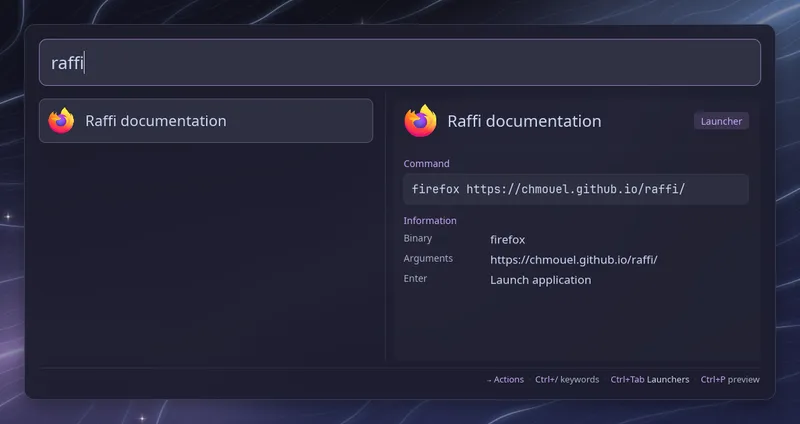
Ctrl+Tab narrows the main list to one source at a time, in the order of
main_view, and comes back to all of them after the last one. Ctrl+Shift+Tab
goes the other way, and the footer shows where you are, for instance
Ctrl+Tab Tabs or Ctrl+Tab All.
A single source lists all its matches with no 5-row limit, and shows its rows before you type anything (script filters still need a query). Fallbacks, keyword suggestions and instant answers such as the calculator only show when all sources are listed. Your choice holds while you type and lasts until Raffi closes. See keyboard shortcuts for the other lists that switch views this way.
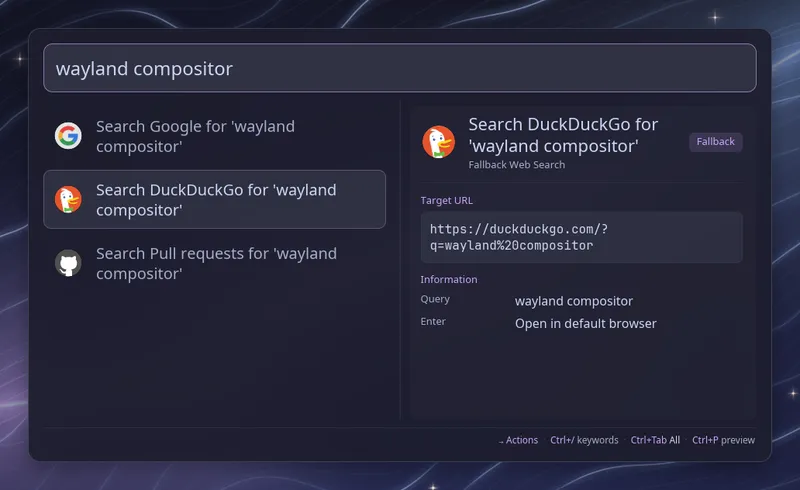
Fallbacks
Section titled “Fallbacks”fallbacks list of strings (default: [])
Rows added at the bottom of the main list whenever you type something, so a web search or script filter is always one Down away without its keyword.
Each entry is written addons.<type>."<name>", where <type> is
web_searches or script_filters and <name> matches the source’s name
field. addons.terminal takes no name and adds a row that runs your query in
a terminal, see Run in Terminal.
general: fallbacks: - addons.web_searches."Google" - addons.web_searches."DuckDuckGo" - addons.script_filters."Search Google" - addons.terminalFallbacks only show when the search isn’t empty, and not while you are inside
an addon. A web search fallback opens the search with your query, a script
filter fallback switches to that filter with your query, and the terminal
fallback runs the query in a terminal. The source you name must be defined in
your addons section.
Things to keep in mind
Section titled “Things to keep in mind”Addon data loads in the background when Raffi starts. Sources that can’t run on this machine, such as windows without a supported compositor or tabs without a connected browser, are skipped quietly.
Script filters listed in main_view run each time you pause typing. Set their
min_query_length so they don’t run for one or two characters. Only one runs
at a time, and a run that takes longer than 10 seconds is stopped. A listed
filter receives everything you type in the main list, so avoid listing one
that sends its query to an online service you wouldn’t otherwise search with.
Live previews from a filter only show inside the filter itself.
Recent picks are saved in ~/.cache/raffi/recent.cache, readable only by you.
It holds tab addresses, password entry names, and the values passed by script
filter rows, so avoid listing a script filter whose values carry secrets, and
delete the file if you’d rather not keep that history.