
Audio Switcher
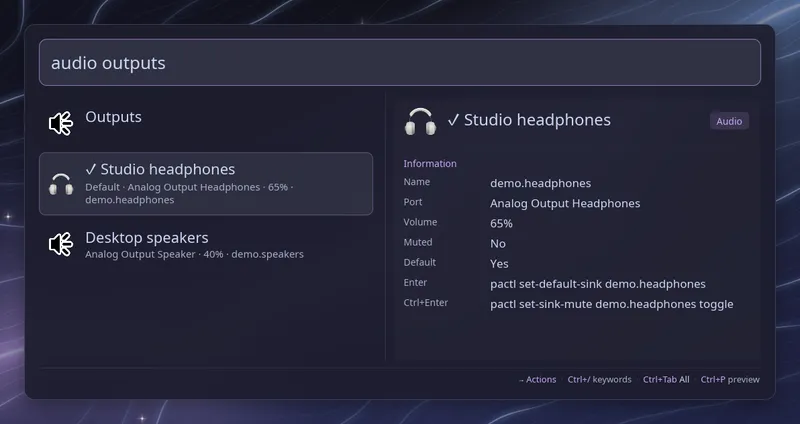
Type audio (with the trailing space) to list your sound devices. A
“Volume” group comes first with “Volume up”, “Volume down”, “Mute output”
and “Mute microphone” for the default devices. The volume rows show the
change they make, such as 60% → 65%. Outputs,
such as speakers and headphones, come next under an “Outputs” header, then
inputs such as microphones under “Inputs”. Each row shows the device name,
its port, its volume and its internal name. The current default device has a
check mark and says “Default”, and a muted device says “Muted”. Monitor
sources, which only echo an output, are left out.
Words after the keyword filter the devices, so audio headphones or
audio razer narrows the list, and audio inputs shows the microphones.
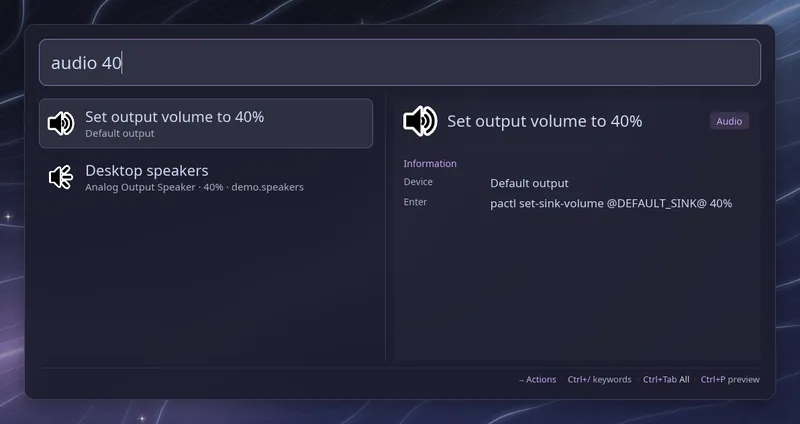
Type a number to set the output volume directly: audio 40, audio vol 40
or audio volume 40% adds a “Set output volume to 40%” row at the top. The
volume never goes above max_volume. When the audio addon is in
main_view, typing vol 40
in the main list does the same. A bare number there is left to the
calculator.
| Key | Action |
|---|---|
| Enter | Make the selected device the default |
| Ctrl+Enter | Mute or unmute the selected device |
| Ctrl+Tab | Show all, only outputs or only inputs |
Ctrl+Shift+Tab goes the other way, and the footer shows the current view. More on Ctrl+Tab.
Raffi stays open after an action and refreshes the list, keeping the same
device selected. When an action fails, an error row appears at the top of the
list. Set close_on_action: true to close Raffi after each action instead.
The header rows only show information and do nothing when selected. Queries typed in this mode are saved in the search history when you run an action.
To open the list from a key binding, pass the keyword as the initial query:
raffi -i "audio "Configuration
Section titled “Configuration”addons.audio.enabled boolean (default: true)
Enable or disable the audio switcher.
addons.audio.trigger string (default: audio)
Keyword that opens the device list. Type it followed by a space. Web searches with the same keyword take precedence.
addons.audio.close_on_action boolean (default: false)
Close Raffi after an action. By default Raffi stays open and refreshes the
list. When unset, Raffi follows general.close_on_action if you have set
it.
addons.audio.volume_step integer (default: 5)
Percent “Volume up” and “Volume down” change the output volume by. At least 1.
addons.audio.max_volume integer (default: 100)
Highest output volume “Volume up” and a typed volume such as vol 40 will
set. Raise it above 100 to allow boosting.
addons: audio: trigger: "snd" close_on_action: true volume_step: 10 # Volume up and down change it by 10% (default: 5) max_volume: 150 # Allow boosting past 100% (default: 100)