Worktree Operations
Create and manage multiple active branches in parallel without branch checkout churn.
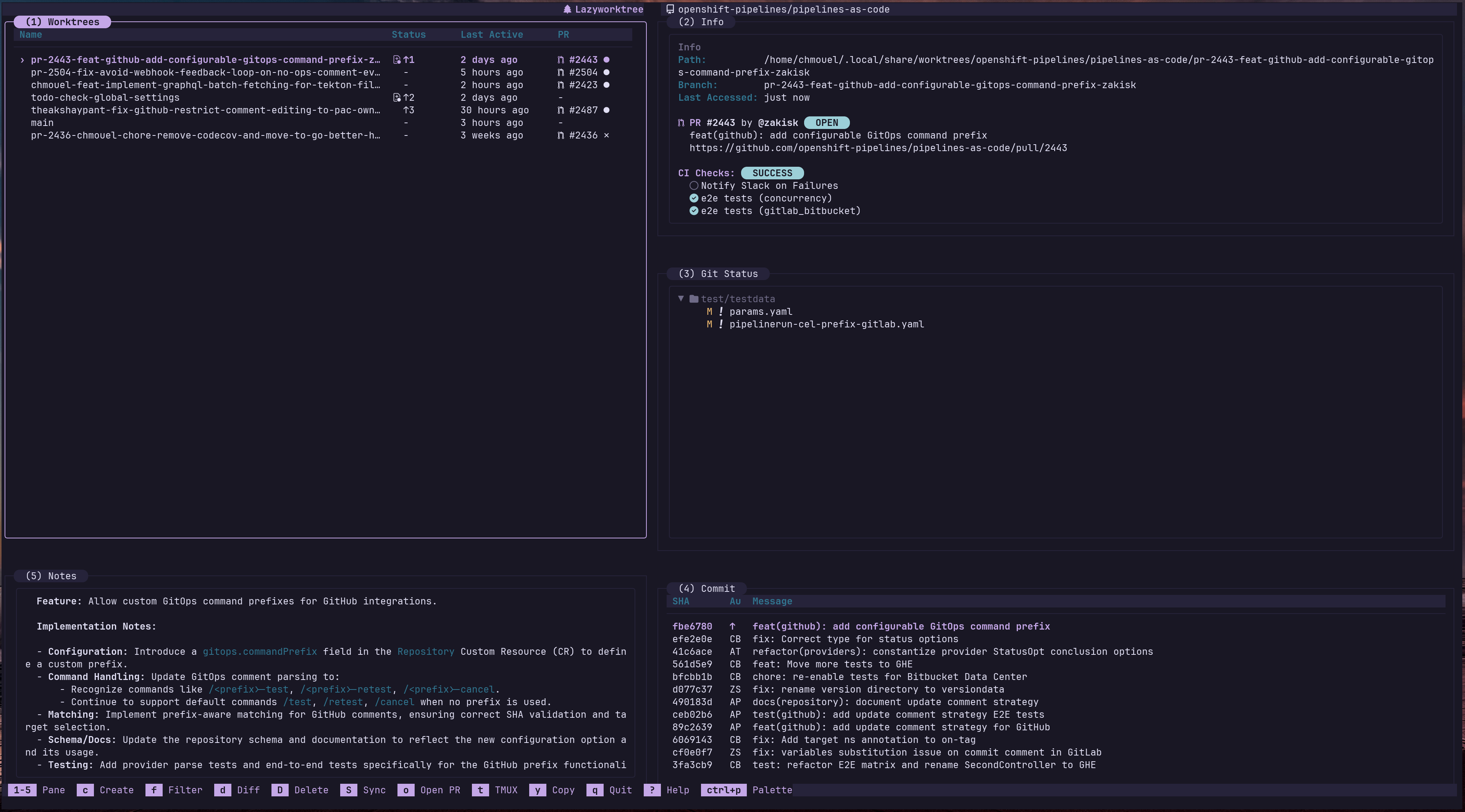
Core Actions
| Action | Purpose | Typical Entry Point |
|---|---|---|
| Create | Start isolated work from branch/PR/issue | c in TUI, lazyworktree create |
| Rename | Keep workspace names meaningful | m in TUI, lazyworktree rename |
| Delete | Remove workspace and optionally branch | D in TUI, lazyworktree delete |
| Absorb | Integrate selected worktree into main | A in TUI |
| Prune | Remove merged worktrees in bulk | X in TUI |
| Sync | Pull and push clean worktrees | S in TUI |
Custom worktree icons
You can assign a custom icon to each worktree, making it easier to recognise context at a glance in busy repositories.
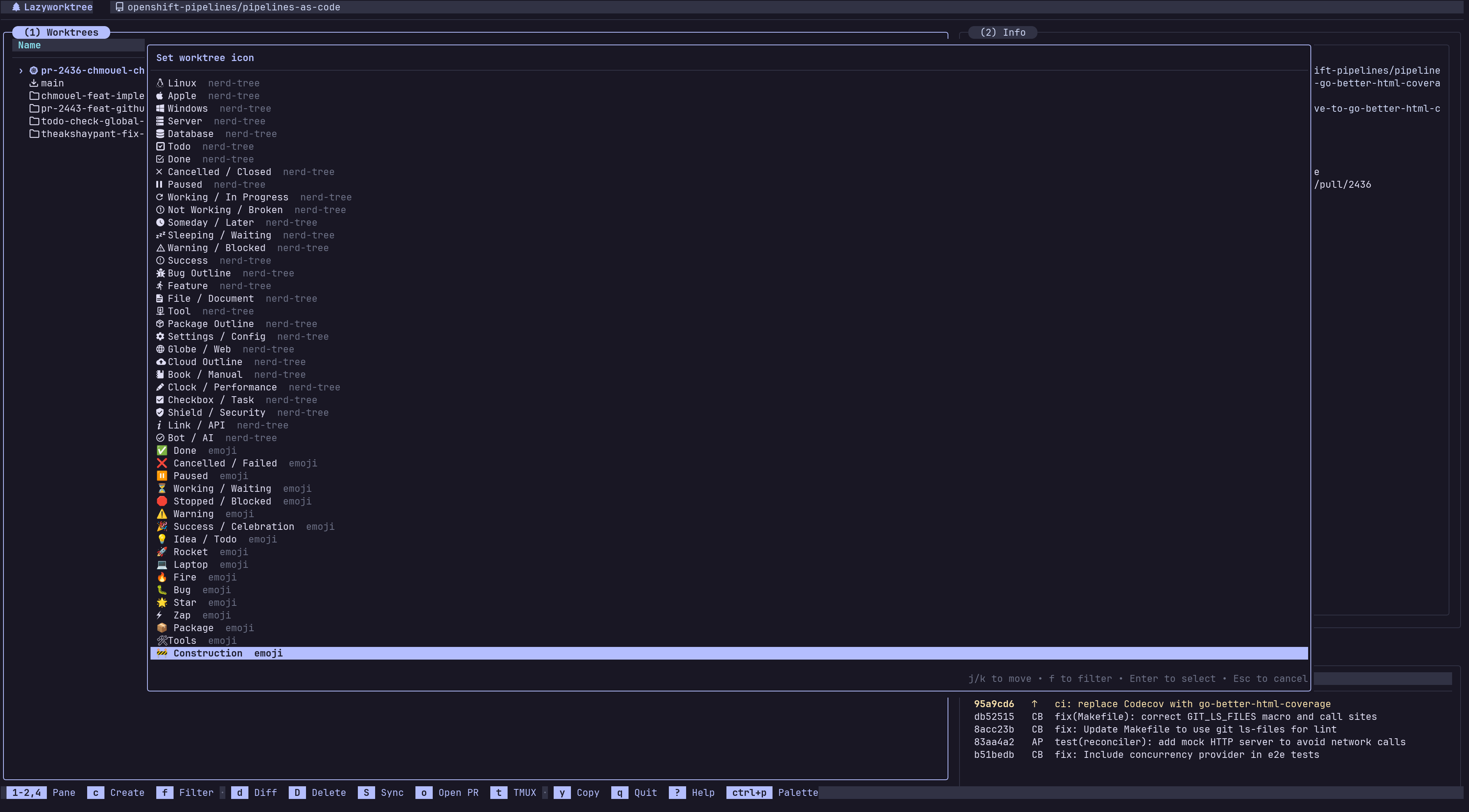
How to set an icon
- Select a worktree in the Worktree pane.
- Press
Ito open Set worktree icon. - Use
j/kto move,fto filter, thenEnterto select.
You can also open this action from the command palette (Ctrl+p or :) by searching for Set worktree icon.
To return to the default icon, choose Default Folder in the picker.
Practical use cases
- Use
🐛orfor bug-fix worktrees. - Use
📋,, orfor TODO queues and follow-up work. - Use
🔧orfor patching and hotfix work. - Use
🧹orfor refactors and cleanup passes. - Use
🧪orfor test-only and verification worktrees. - Use
🔍orfor review, triage, and investigation work. - Use
🛑,, orfor blocked or urgent work. - Use
📚for documentation updates. - Use
orfor infrastructure and platform changes. - Use
🚀orfor feature delivery streams.
Custom worktree colours
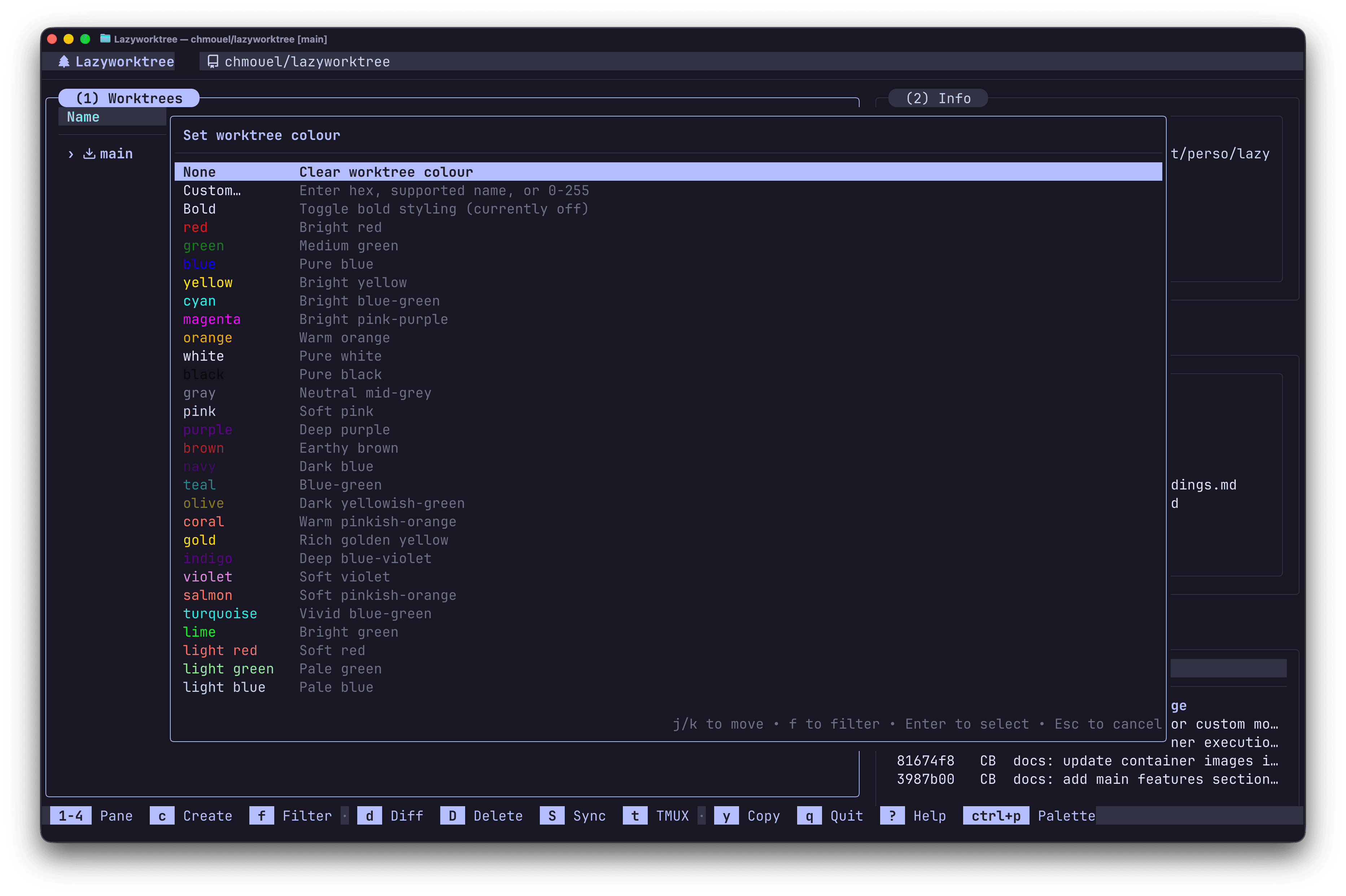
You can assign a colour to each worktree name (hex, supported named colour, or 256-colour index). The value is stored in worktree notes (JSON or splitted frontmatter), like the icon.
How to set a colour
- Select a worktree in the Worktree pane.
- Open the command palette (
F1,Ctrl+p, or:) and search for Set worktree colour. - Pick a named colour, a 256-palette index (0–255), choose Custom… to enter a value, or choose None to clear.
If you pick None, the colour is cleared and the worktree name will use the default colour.
If you choose Bold the worktree colour will be displayed in bold.
Colours are applied to the worktree name in the table. Stored values can be hex
(#RRGGBB), supported named colours (for example red or Light Blue), or a
decimal index for the 256-colour palette.
Practical use cases
Use colour coding to indicate worktree status. For example:
- Use
redor a bright colour for worktrees with uncommitted changes. - Use
greenfor worktrees that are up to date with the main branch. - Use
yellowfor worktrees that are in progress or need attention. - Use
bluefor worktrees associated with open PRs or issues.
Default Location
Worktrees are created under:
Customise this with the worktree_dir configuration option.
Creation Sources
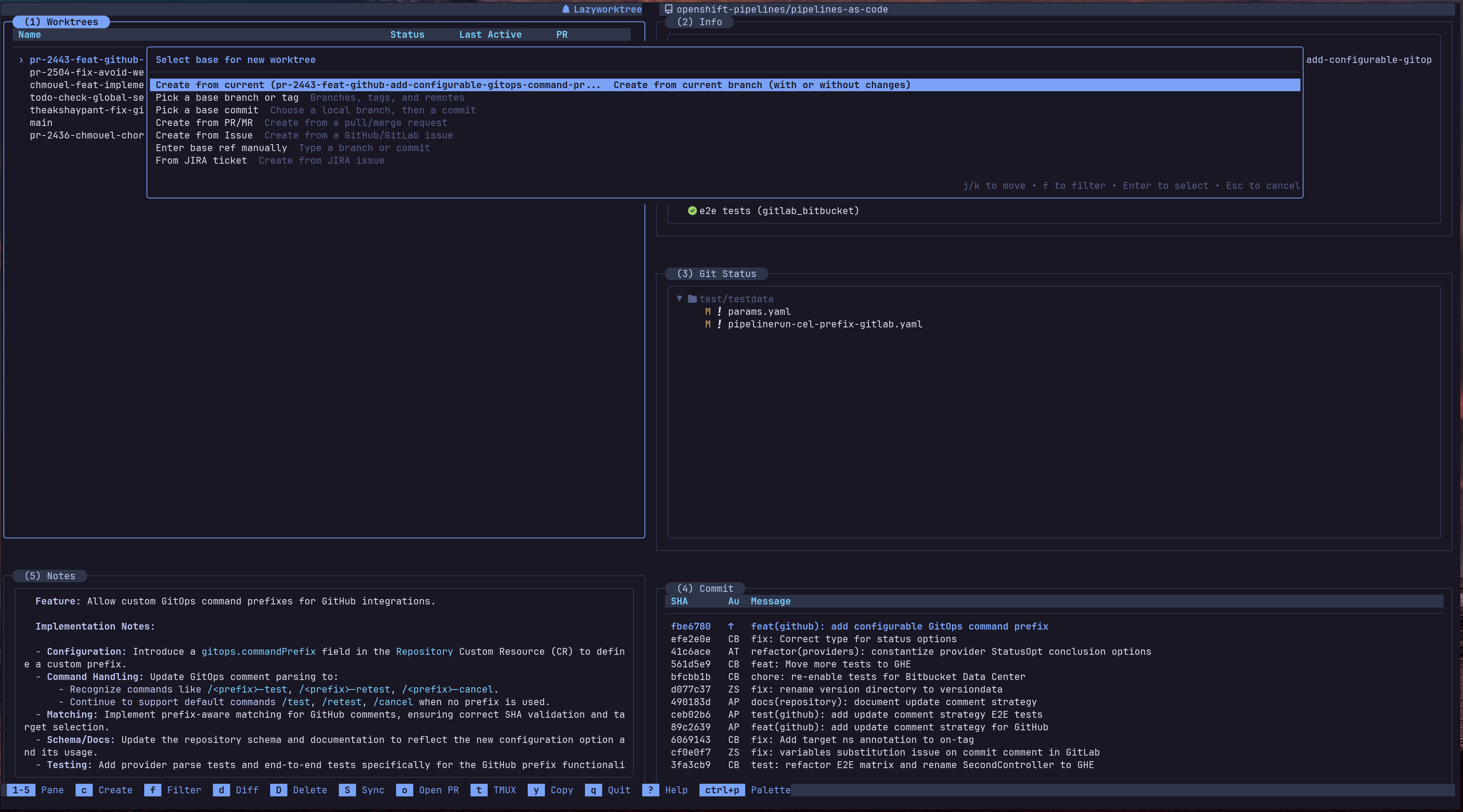
Press c to open the creation menu with the following modes:
- From current branch — with or without uncommitted changes
- Checkout existing branch — select from available branches or create a new one
- From PR/MR — create a worktree directly from an open pull or merge request
- From issue — create a worktree from a GitHub or GitLab issue
Creating from a PR or Issue
When creating from a PR or issue, LazyWorktree:
- Fetches the PR/issue metadata using
ghorglab - Generates a branch name from the title (or via AI if
branch_name_scriptis configured) - Checks out the branch and sets up the worktree
- Optionally generates a note from the description (if
worktree_note_scriptis configured)
Tip
Configure pr_branch_name_template and issue_branch_name_template to control how branch names are derived. See Branch Naming.
Branch Name Sanitisation
All branch names — manual or generated — are automatically sanitised:
| Input | Converted |
|---|---|
feature.new |
feature-new |
bug fix here |
bug-fix-here |
feature:test |
feature-test |
user@domain/fix |
user-domain-fix |
Special characters are converted to hyphens, leading/trailing hyphens are removed, and consecutive hyphens are collapsed.
For exact CLI patterns, see CLI create.
Lifecycle Hooks
Worktree creation/removal can run commands from repository .wt files and global config hooks. These are protected by TOFU (Trust On First Use) security — you must explicitly approve each .wt file before its commands execute.
For hook setup and trust behaviour, see Lifecycle Hooks.
Environment-Aware Commands
Custom commands and lifecycle hooks receive managed worktree and source context variables:
| Variable | Description |
|---|---|
WORKTREE_NAME |
Name of the worktree (e.g., my-feature) |
WORKTREE_BRANCH |
Branch name for the worktree |
WORKTREE_PATH |
Full path to the worktree directory |
MAIN_WORKTREE_PATH |
Path to the main/root worktree |
REPO_NAME |
Name of the repository |
REPO_OWNER |
Repository owner when available |
REPO_REPONAME |
Repository name without the owner |
LAZYWORKTREE_TYPE |
Source context type, such as pr, issue, or diff when known |
LAZYWORKTREE_NUMBER |
PR/MR or issue number when known |
LAZYWORKTREE_TEMPLATE |
Branch-name template used during PR/MR or issue creation when known |
LAZYWORKTREE_SUGGESTED_NAME |
LazyWorktree's default branch/worktree name suggestion when known |
LAZYWORKTREE_TITLE |
PR/MR or issue title when known |
LAZYWORKTREE_URL |
PR/MR or issue URL when known |
LAZYWORKTREE_DESCRIPTION |
PR/MR or issue body when known |
LAZYWORKTREE_* values are empty when the selected worktree has no known PR/MR, issue, or diff source context.