Notes and Taskboard
Worktree notes keep implementation context close to the worktree itself. Taskboard extracts markdown checkboxes into a grouped actionable view.
Notes Behaviour
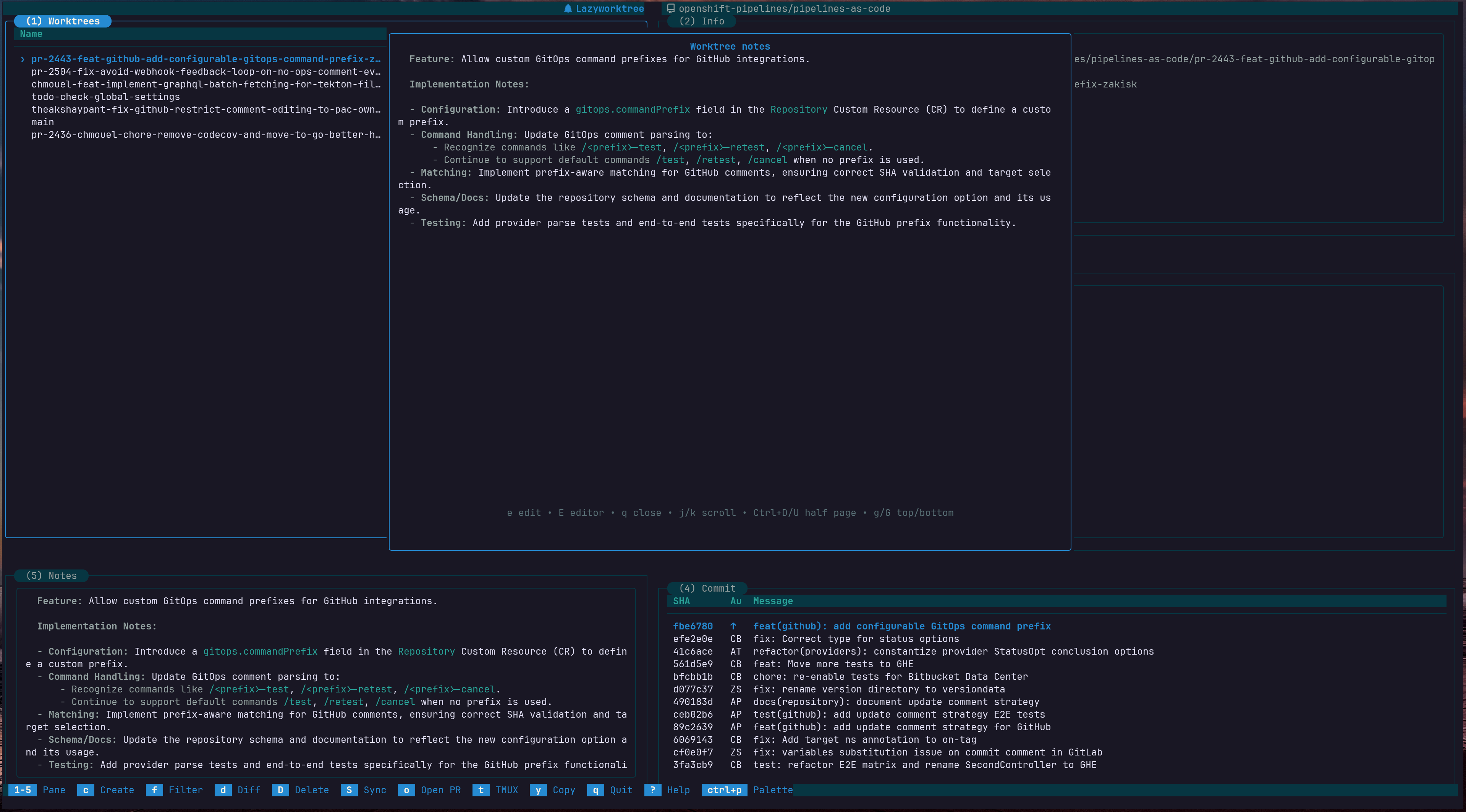
Press i on a selected worktree:
- if a note exists: opens note viewer first
- if no note exists: opens note editor
Viewer controls include scrolling, half-page navigation, and quick edit entry. Editor supports save, external editor handoff, newline insertion, and cancel.
Description
Use the command palette (: or Ctrl+P) and select Set worktree description to assign a short human-readable label to a worktree. When set, the description replaces the directory name in the worktree list for display purposes. This helps with long directory names such as pr-2423-feat-implement-graphql-batch-fetching. Setting an empty description clears it and restores the directory name. The description is also included in filter and search matching, and is stored as part of the worktree note metadata (JSON or frontmatter).
Tags
Use the command palette (:, F1, or Ctrl+P) and select Set worktree tags to assign labels to a worktree. Type tags as a comma-separated list (for example bug,frontend,urgent) and toggle existing labels from the same editor when you want to mix reuse with new tags. Tags display as coloured badges (using guillemet brackets, «tag») immediately after the worktree name and in the Info pane when present, with each tag receiving a deterministic colour from the theme palette. Setting an empty value clears all tags. Use Browse by worktree tags in the command palette to see all existing labels with counts and apply an exact tag:<name> filter without remembering the tag text first. Tags are stored alongside other worktree note metadata (JSON or frontmatter) and are included in filter and search matching, to find worktrees by label.
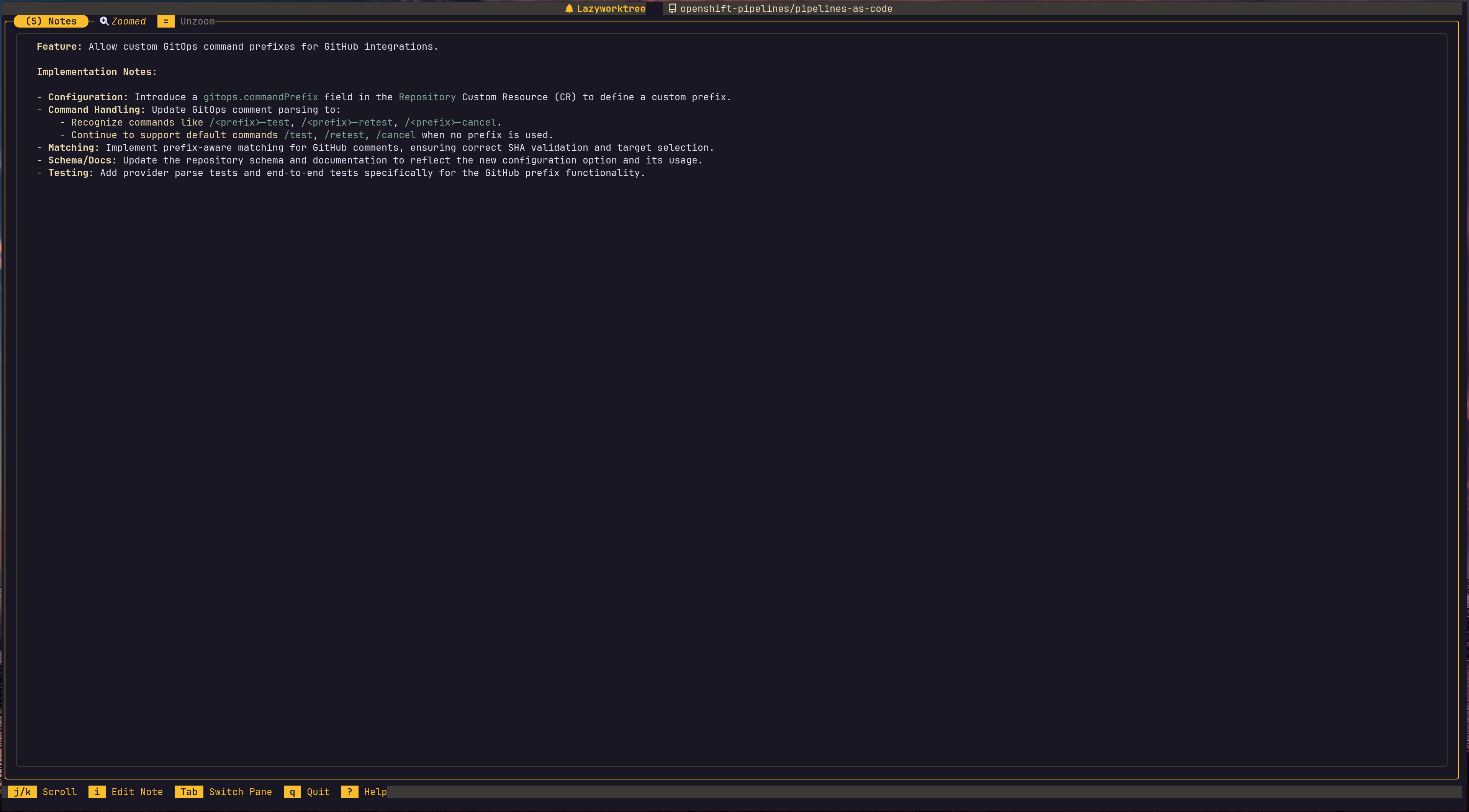
When a note exists for a worktree, a note marker appears in the worktree list and the Notes pane (pane 5) becomes visible.
Markdown Rendering
The info pane renders common markdown elements, including:
- headings (styled hierarchically)
- ordered and unordered lists
- quotes
- inline code and fenced code blocks (syntax highlighted with delta)
- links (highlighted)
Uppercase tags like TODO, FIXME, and WARNING: are highlighted (outside fenced code blocks).
Taskboard
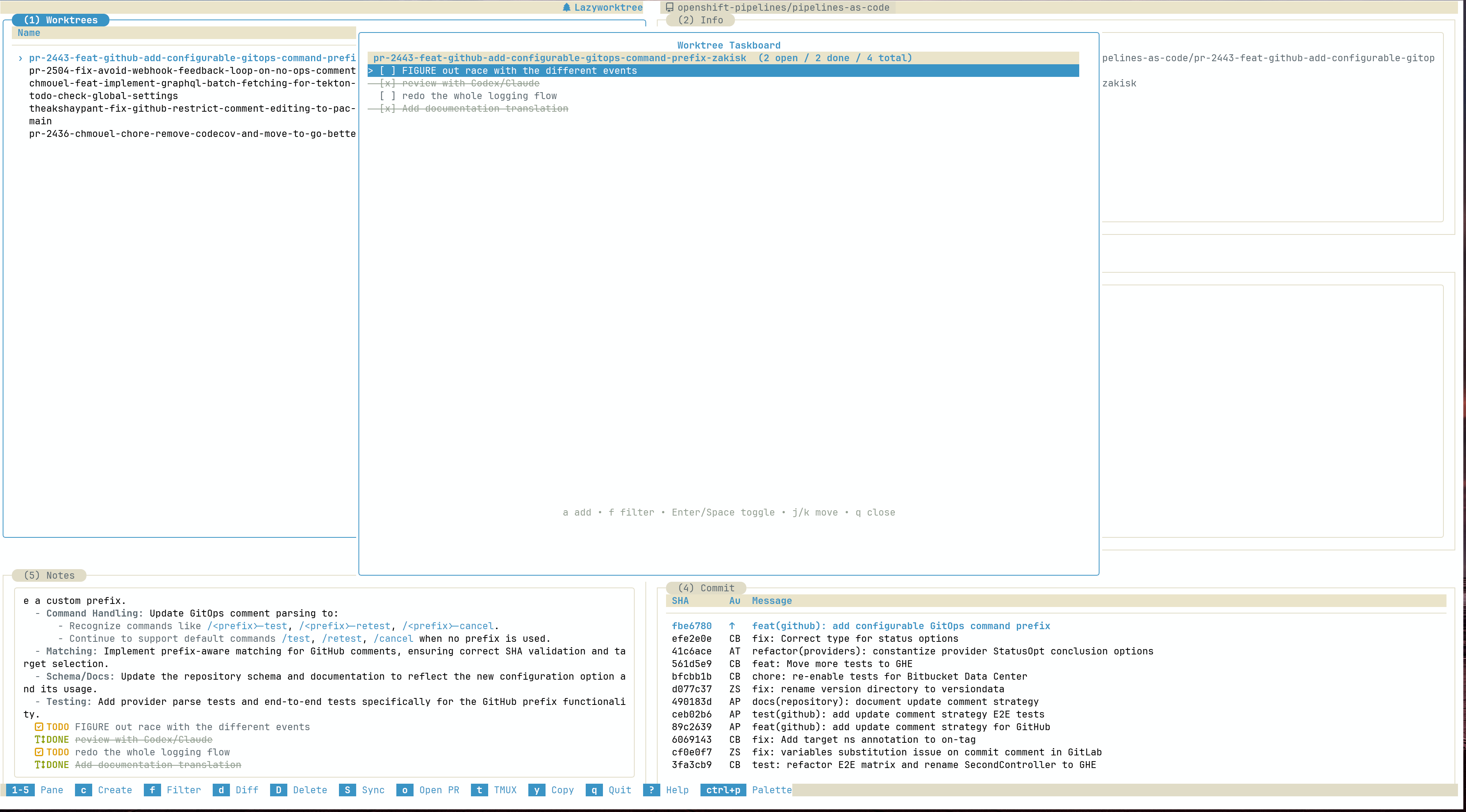
Press T to open Taskboard. It sources markdown checkboxes from worktree notes and presents them in a grouped, actionable view.
Taskboard Keybindings
| Key | Action |
|---|---|
j / k |
Move between tasks |
Enter or Space |
Toggle task completion |
a |
Add a new task |
f |
Filter tasks |
q / Esc |
Close Taskboard |
Example checkbox syntax in notes:
Automatically Generated Notes
You can prefill notes for PR/issue-based worktrees using worktree_note_script. When creating a worktree from a PR or issue, the script receives the title and description on stdin and outputs a note to stdout.
worktree_note_script: "aichat -m gemini:gemini-3.5-flash-lite 'Summarise this ticket into practical implementation notes.'"
If the script fails or outputs nothing, worktree creation continues normally without saving a note.
For full script configuration and environment variables, see AI Integration.
Synchronisable Notes
By default, notes are stored in git config (local to each repository clone). To share notes across machines or with team members, configure a JSON storage path:
This creates a single JSON file in your repository with all worktree notes. Commit the file to share notes with your team.
Tip
When worktree_notes_path is set, keys are stored relative to worktree_dir instead of absolute paths, making them portable across different systems.
Alternatively, use worktree_note_type: splitted to store each note as an individual markdown file. See worktree notes for details.