Navigation and Keybindings
Interface Layout
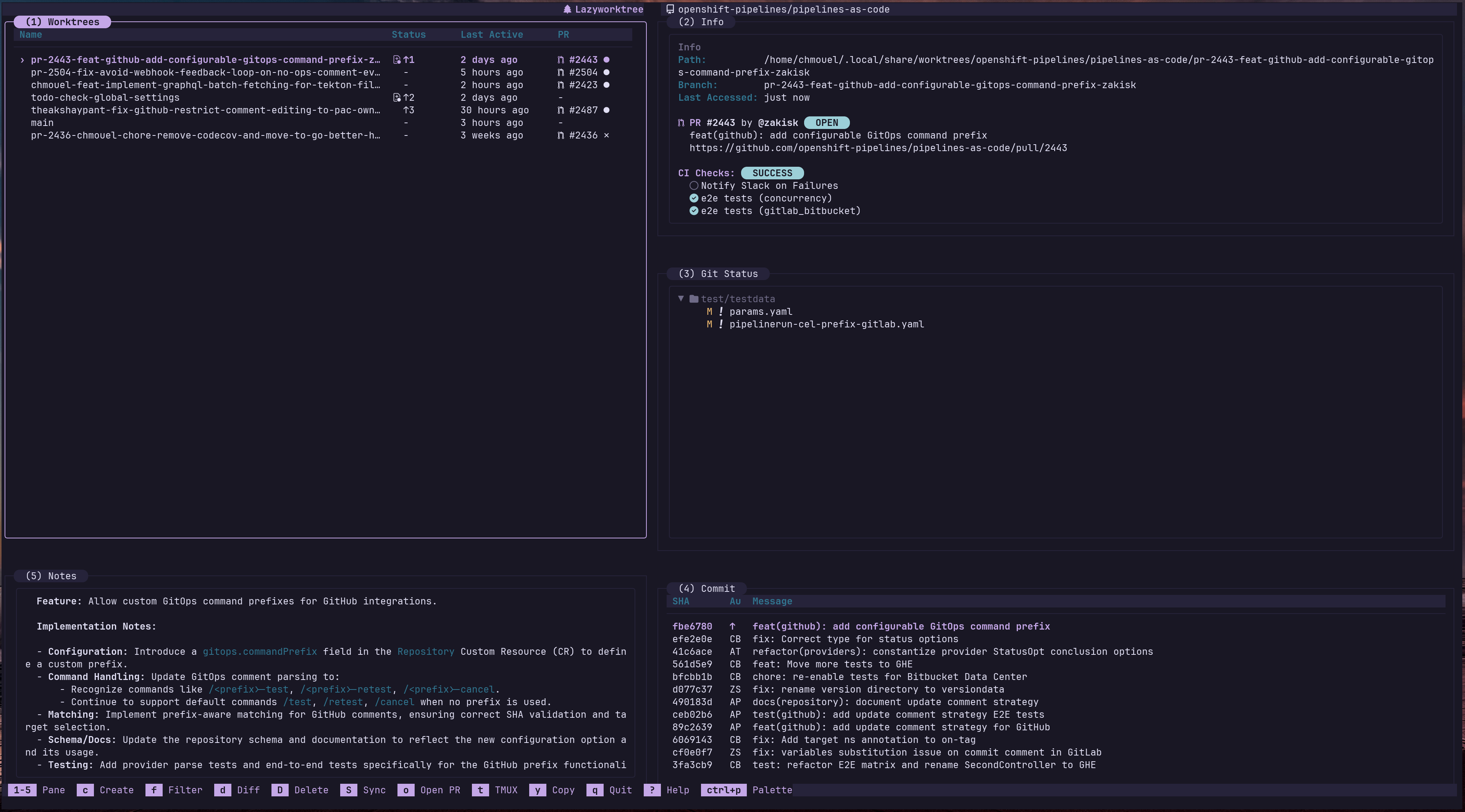
The TUI is organised into six panes:
| Pane | Key | Content |
|---|---|---|
| Worktree List | 1 |
All Git worktrees with branch, note markers, and status indicators |
| Status / CI | 2 |
PR/MR info, CI check results, divergence status, and notes preview |
| Git Status | 3 |
Changed files in the selected worktree (collapsible tree view) |
| Commit Log | 4 |
Commit history for the selected branch |
| Notes | 5 |
Per-worktree notes (visible only when a note exists) |
| Agent Sessions | 6 |
Open Claude, Codex, Copilot, and pi sessions attached to the selected worktree by default; historical sessions can be revealed on demand |
Layout Modes
Press L to toggle between two layout arrangements:
- Default layout — worktree list on the left, agent sessions and notes stacked beneath it when present, detail panes stacked on the right
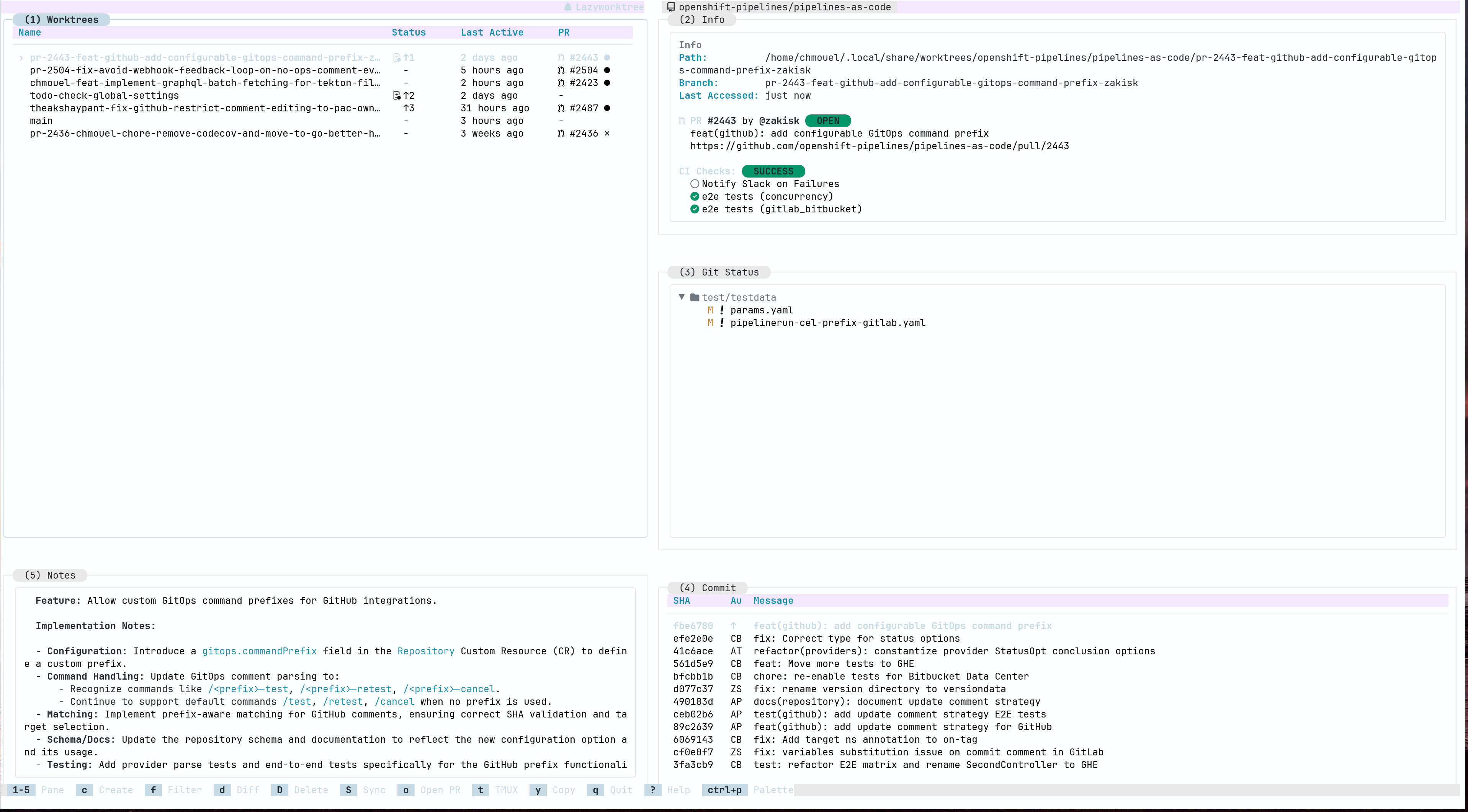
- Top layout — alternative arrangement with worktrees at the top, optional agent sessions and notes rows beneath, and detail panes along the bottom
Zoom Mode
Press = to toggle zoom for the focused pane, expanding it to fill the entire screen. Pressing the number key for an already-focused pane also toggles zoom.
Global Navigation
| Key | Action |
|---|---|
j, k |
Move selection up/down |
Tab, ] |
Next pane |
[ |
Previous pane |
h, l |
Shrink / Grow worktree pane |
Home, End |
Jump to first/last item |
q |
Quit |
? |
Help |
Pane Focus and Layout
| Key | Action |
|---|---|
1..6 |
Focus specific panes |
= |
Toggle zoom for focused pane |
L |
Toggle layout (default / top) |
Agent Sessions is the final pane in the Tab cycle when visible, even though it is rendered above Notes.
By default the pane shows only sessions with confirmed live agent processes; press A in the pane to include offline history, and press 6 to reveal historical matches when nothing is currently open.
Pane-Specific Actions
Worktree Pane
Enter— jump to selected worktree (exits LazyWorktree and outputs the path)s— cycle sort mode: Path, Last Active (commit date), Last Switched (access time)e— edit worktree metadata for the selected worktree (description, colour, notes, icon, tags)- Command palette only: Set worktree colour (picker plus
Custom…for hex, supported named colours, or 256 indices) - Command palette only: Worktree notes and Set worktree icon remain available without default direct shortcuts
- Command palette only: Set worktree tags (type labels separated by commas, e.g. "bug,frontend,urgent", and toggle existing tags in the same editor; displayed as coloured badges after the worktree name, shown in the Info pane when present, and included in filter/search)
- Command palette only: Browse by worktree tags (lists all existing tags with counts and applies an exact
tag:<name>worktree filter)
Git Status Pane
Enter— toggle collapse/expand or show diffse— open file in editors— stage/unstage files or directoriesd— show full diff in pagerc— open the commit screen from the Git Status pane for staged changesCtrl+g— open the commit screen from anywhere; the screen uses a dedicated subject field,Tabswitches to the body,Ctrl+oauto-generates from the staged diff, andCtrl+xopens the draft in the configured editorC— stage all changes and commit with the git editorCtrl+←/Ctrl+→— jump between folders
Commit Pane
Enter— view commit's file treed— show full commit diff in pagerC— cherry-pick commit to another worktreeCtrl+j— move to next commit and open its file tree
Each commit displays a status indicator: ↑ (red) for unpushed commits, ★ (yellow) for commits pushed but not yet in the main branch, or the author's initials when fully merged.
Search and Filter
| Mode | Key | Behaviour |
|---|---|---|
| Filter | f |
Filter focused pane list |
| Search | / |
Incremental search in focused pane |
| Next match | n |
Move to next search match |
| Previous match | N |
Move to previous search match |
| Clear | Esc |
Clear active filter/search |
Tip
Filter mode works across worktrees, files, and commits. Use Alt+n/Alt+p to navigate matches whilst updating the filter input, or arrow keys to navigate without changing it.
Tip
In the worktree pane, tag:<name> applies an exact tag filter. Use Browse by worktree tags from the command palette if you do not remember the available labels.
Command Access
| Key | Action |
|---|---|
F1, Ctrl+p, : |
Open command palette |
! |
Run arbitrary shell command in selected worktree |
g |
Open lazygit |
Clipboard Shortcuts
| Key | Action |
|---|---|
y |
Copy context-aware value (path/file/SHA) |
Y |
Copy selected worktree branch name |
Customising Keybindings
The keybindings: block in your configuration file uses the same pane-scoped structure as custom_commands:. universal bindings apply in every pane; pane-specific sections scope bindings to that pane only and override any universal binding for the same key.
Available pane names: universal, worktrees, info, status, log, notes, agent_sessions
Key formats: single keys (e), modifiers (ctrl+e, alt+t), special keys (enter, tab, esc, space)
Keys defined in keybindings: take priority over custom_commands and built-in keys. The bound key is also displayed as the shortcut in the command palette.
See Action IDs Reference for the full list of valid action IDs that can be bound.
Full Reference
For complete pane-by-pane key coverage, see Key Bindings Reference. For a guided icon customisation workflow, see Worktree Operations.