 Liseursync
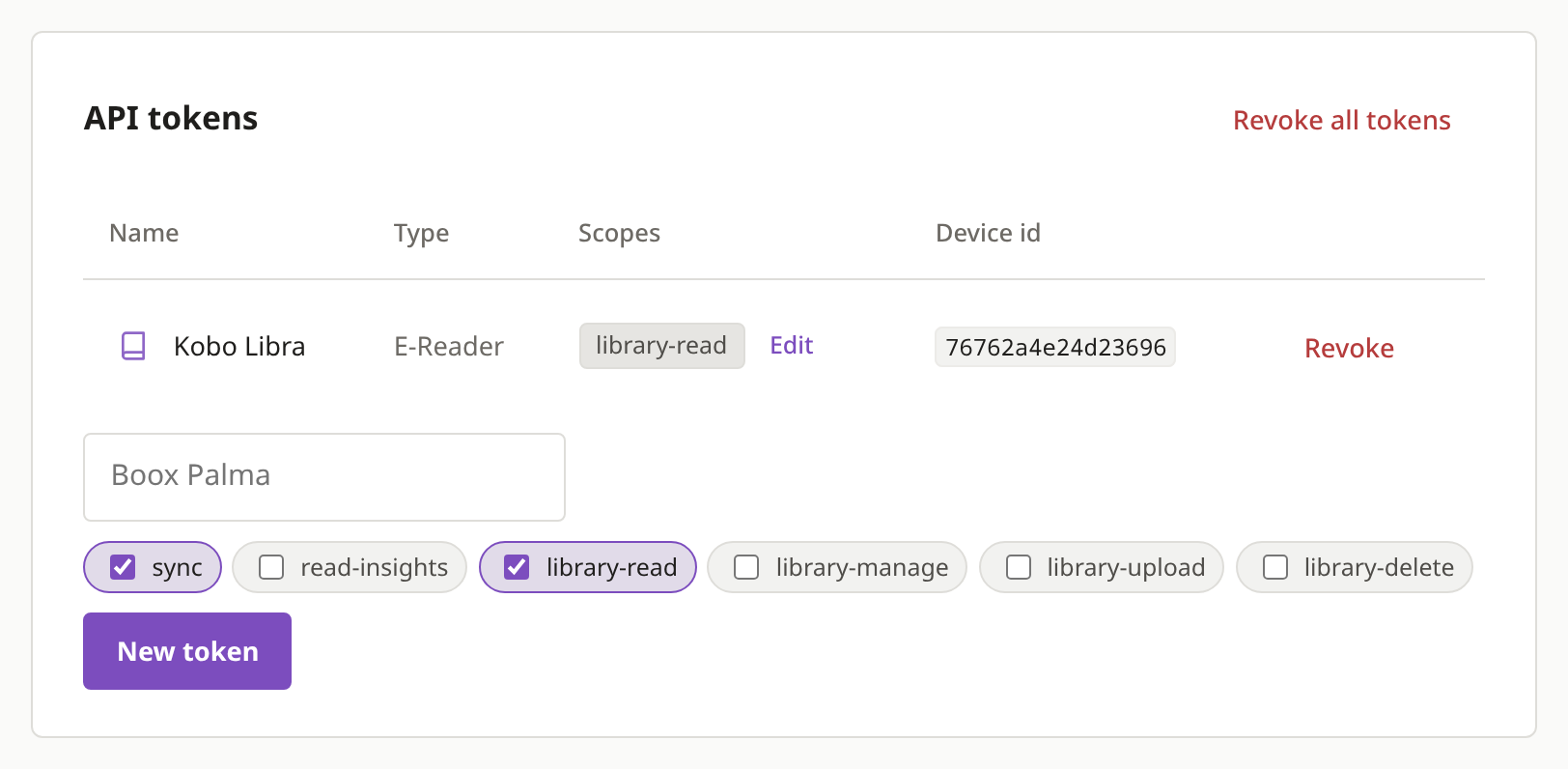
Library access
Lets KOReader list and download your books. It has no other access.
Download one file from your server, copy it onto the e-reader and start KOReader. It then lists your books, remembers where you stopped and sends your reading time to the server.
StartIt takes about five minutes, and you never type a password on the e-reader.
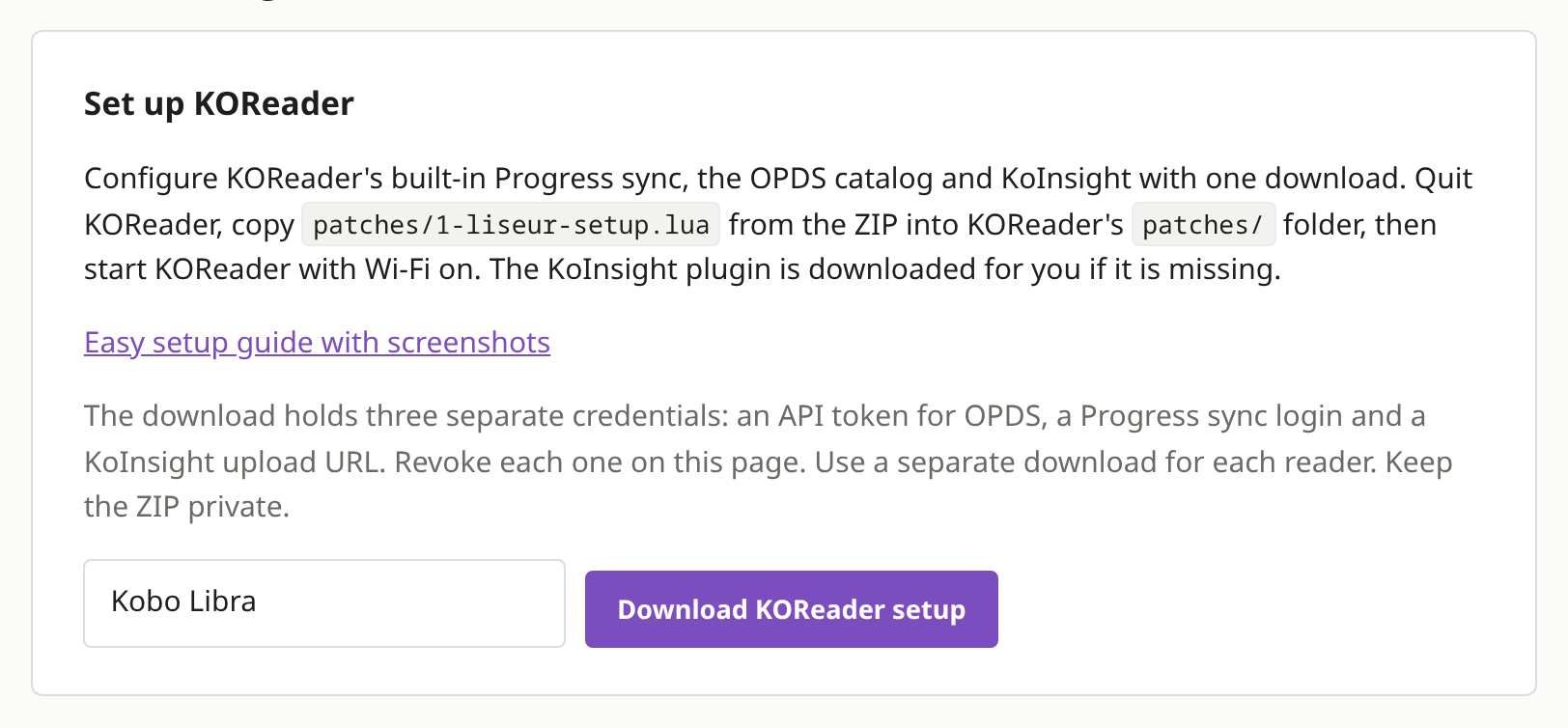
On your computer, sign into LiseurSync and open Settings, then Devices & integrations. In the Set up KOReader box, type a name for the e-reader, such as Kobo Libra, and press Download KOReader setup.
You get a ZIP. The folders you need is plugins/liseur-sync.koplugin inside it.
The ZIP contains logins for your library, so keep it private and delete it once the setup works.
Quit KOReader if it is running and plug the e-reader into your computer. In KOReader's folder, copy the whole liseur-sync.koplugin folder into plugins, then eject the e-reader. Delete it once plugins/koinsight.koplugin exists.
| Kobo | .adds/koreader/ (the .adds folder is hidden, so show hidden files) |
|---|---|
| Kindle | koreader/ at the top level |
| PocketBook | applications/koreader/ |
On Android, KOReader's folder is koreader/ in internal storage. The F-Droid build works the same way, because the setup is a plugin and not a patch.
koreader/
├── settings/
└── plugins/
    └── liseur-sync.koplugin/
        ├── main.lua
        └── _meta.lua
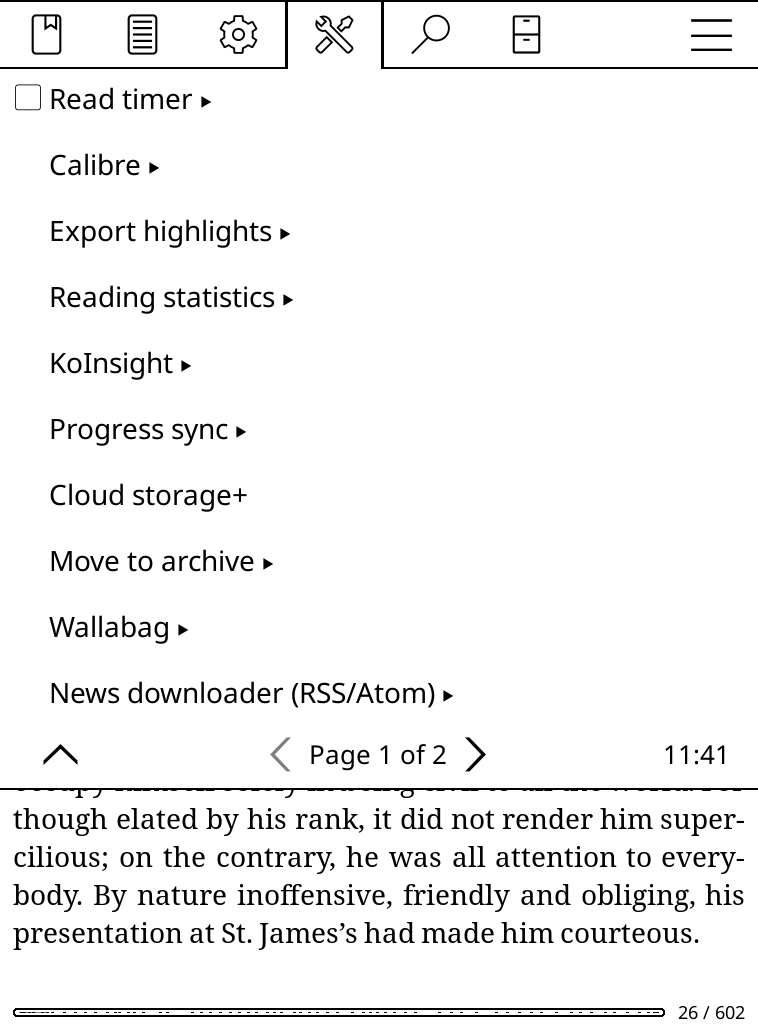
The OPDS catalog and Progress sync are built into KOReader. The one add-on is the KoInsight plugin, which sends your reading time to the server, and the setup downloads it for you. The first start takes longer than usual while it does. If the e-reader is offline, the setup runs again at the next start. Restart KOReader once more so KoInsight is loaded.
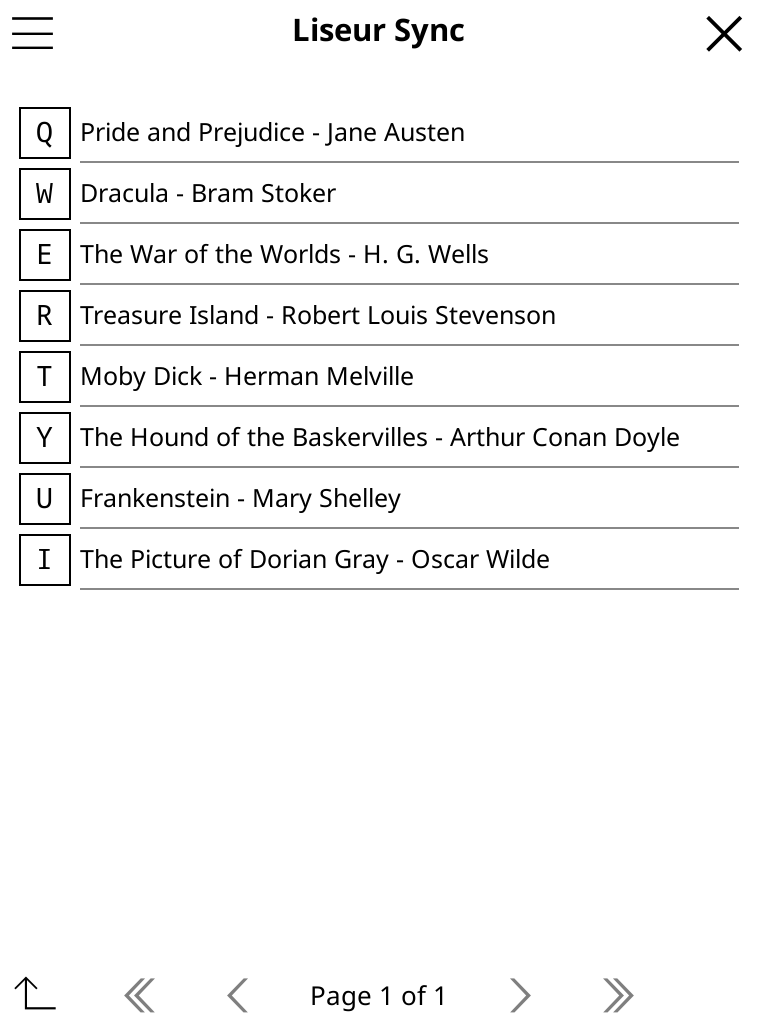
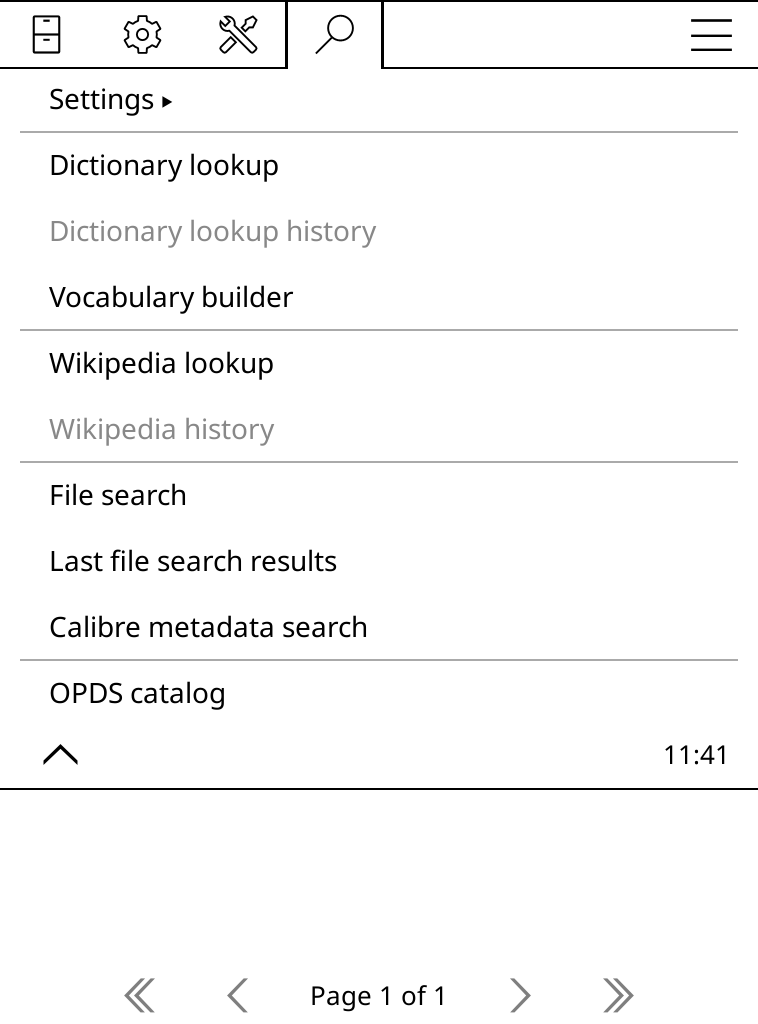
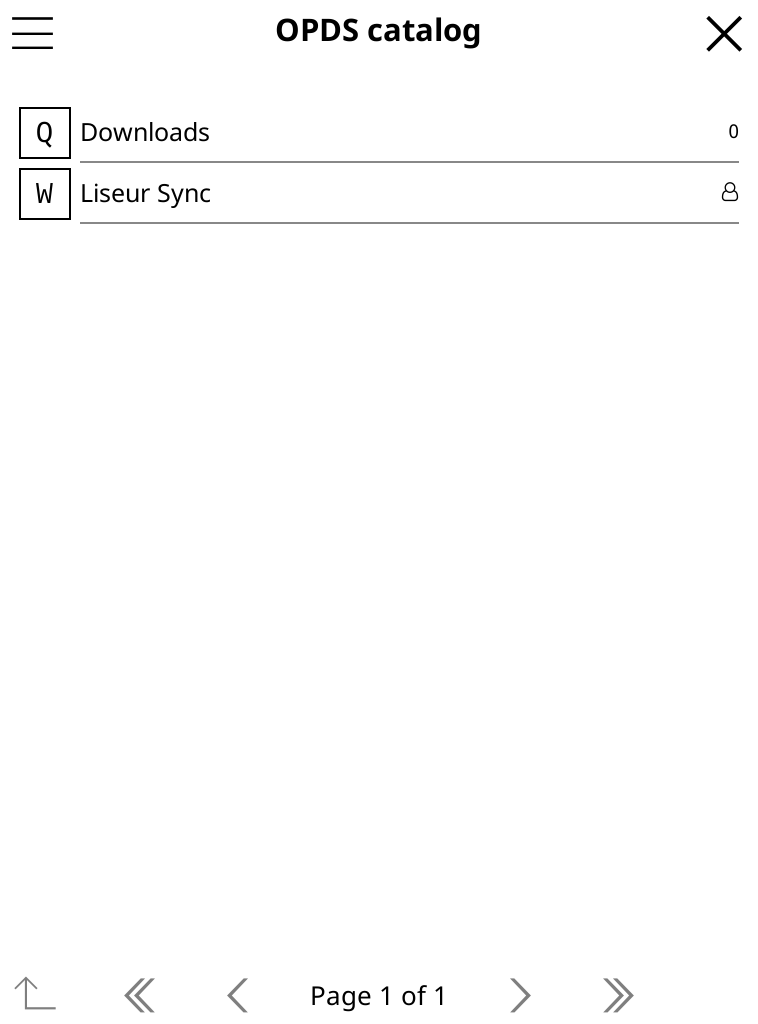
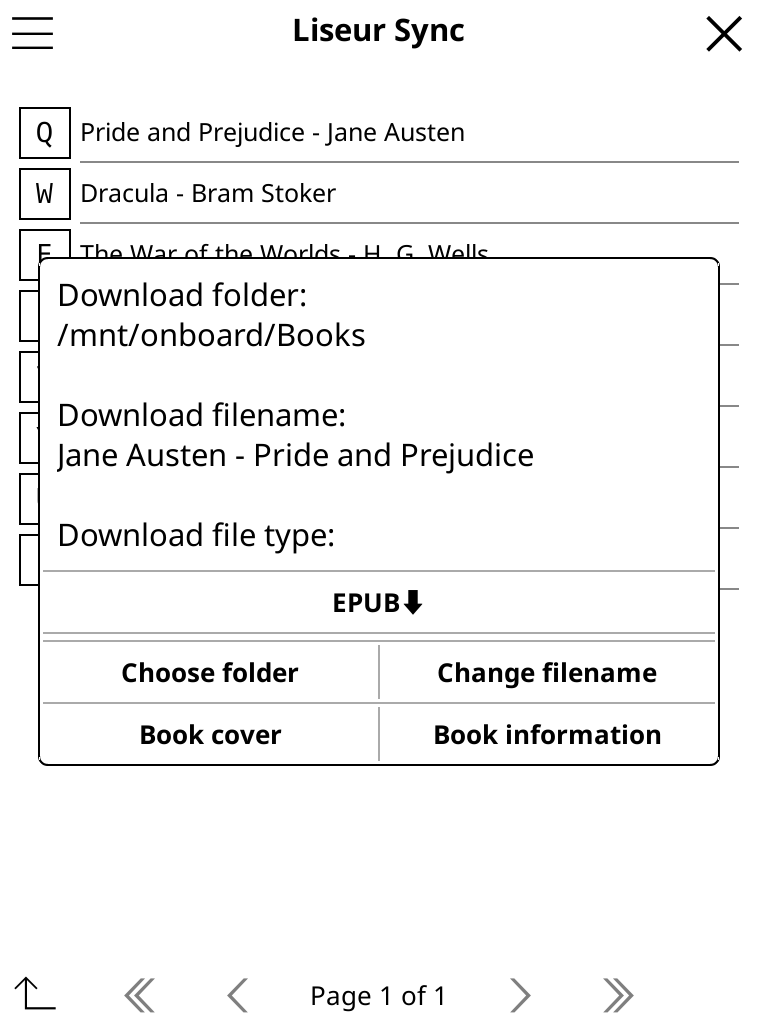
To check, open the top menu, tap the magnifier and choose OPDS catalog. Liseur Sync is in the list.
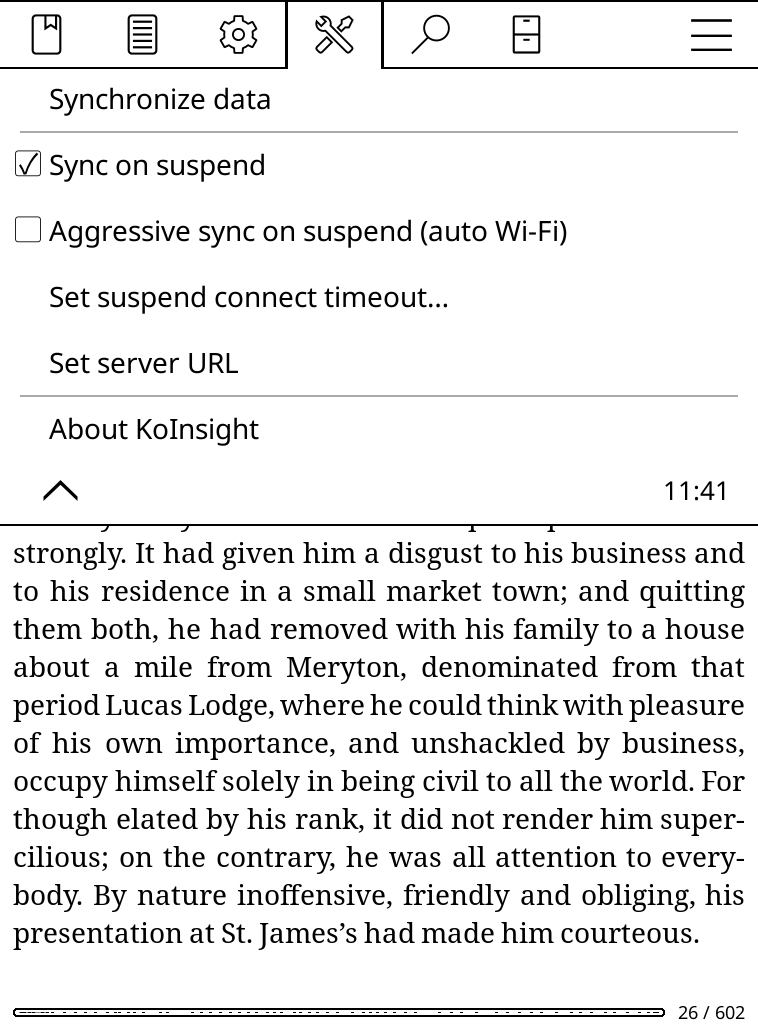
The download holds three logins named after your e-reader. None of them is your account password, and each can be revoked on its own.
Lets KOReader list and download your books. It has no other access.
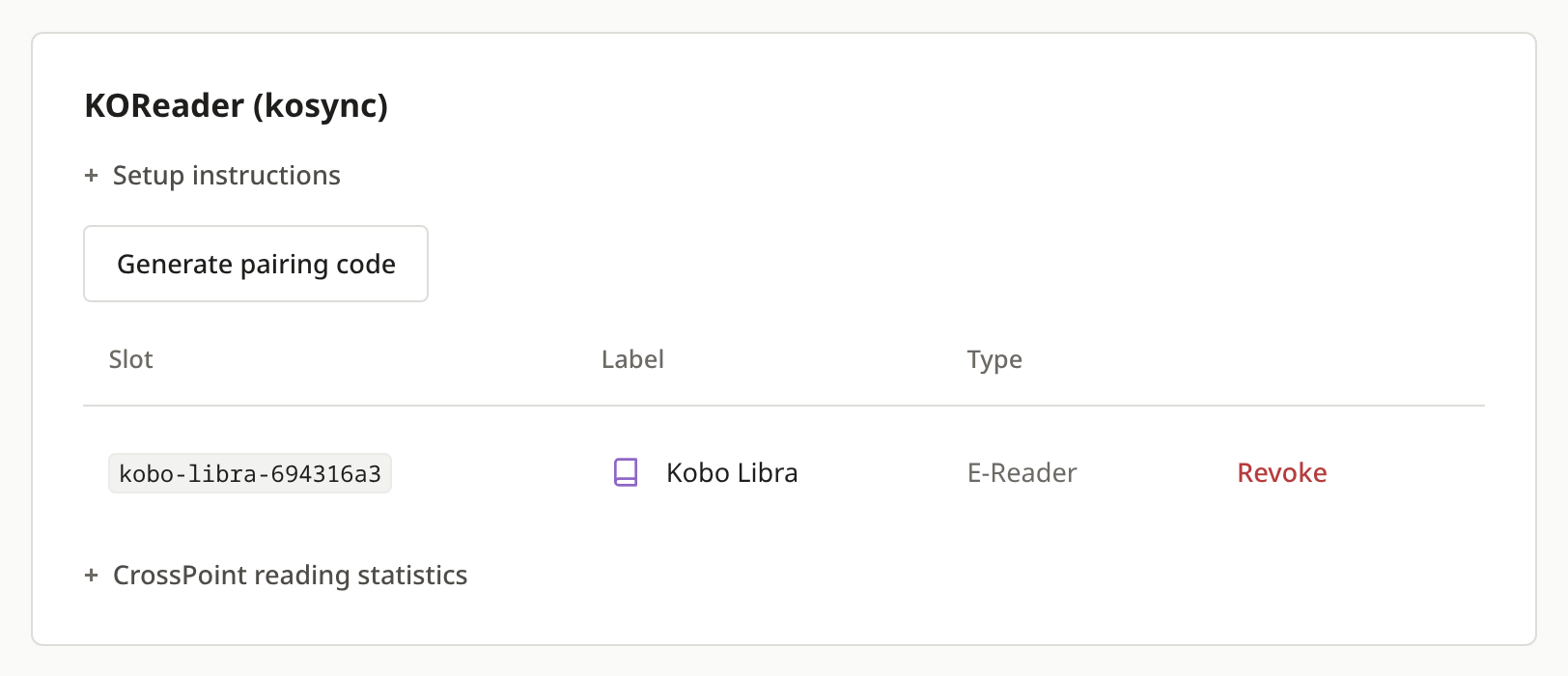
Used by KOReader's Progress sync to save where you stopped.
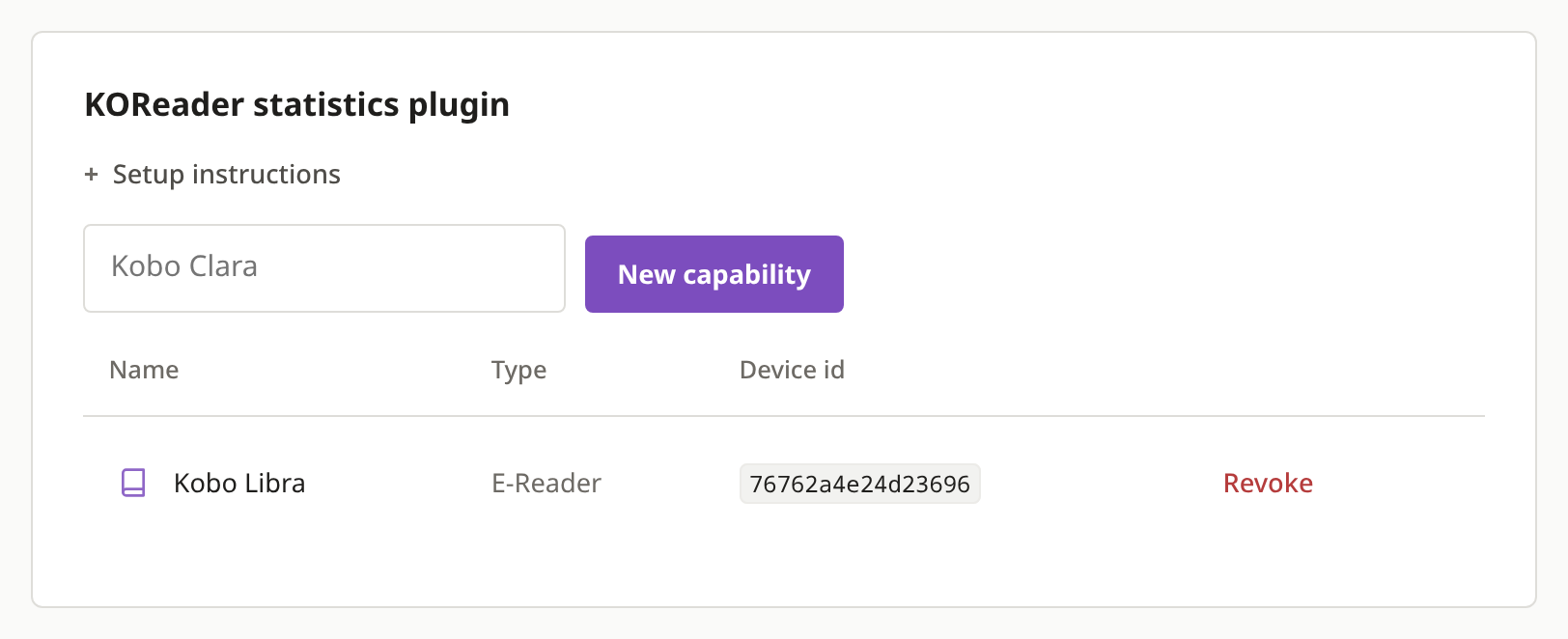
A private address that only the KoInsight plugin uses to send how long you read.
Download a separate setup for each e-reader and give each its own name. To remove one, press Revoke on the three entries with its name: the API token on the Apps tab, the other two on the E-readers tab. Revoking one entry leaves the other two working.
Check that liseur-sync.koplugin sits in koreader/plugins/ and holds main.lua. Quit KOReader completely (menu, then Exit) before starting it again, because putting it to sleep is not enough. Also check that the setup is not switched off in Tools, More tools, Plugin management.
The e-reader was offline at the first start. Turn on Wi-Fi and restart KOReader.
The login in the setup was revoked, or the setup came from another server. Download a new one from Devices and copy it over the old folder.
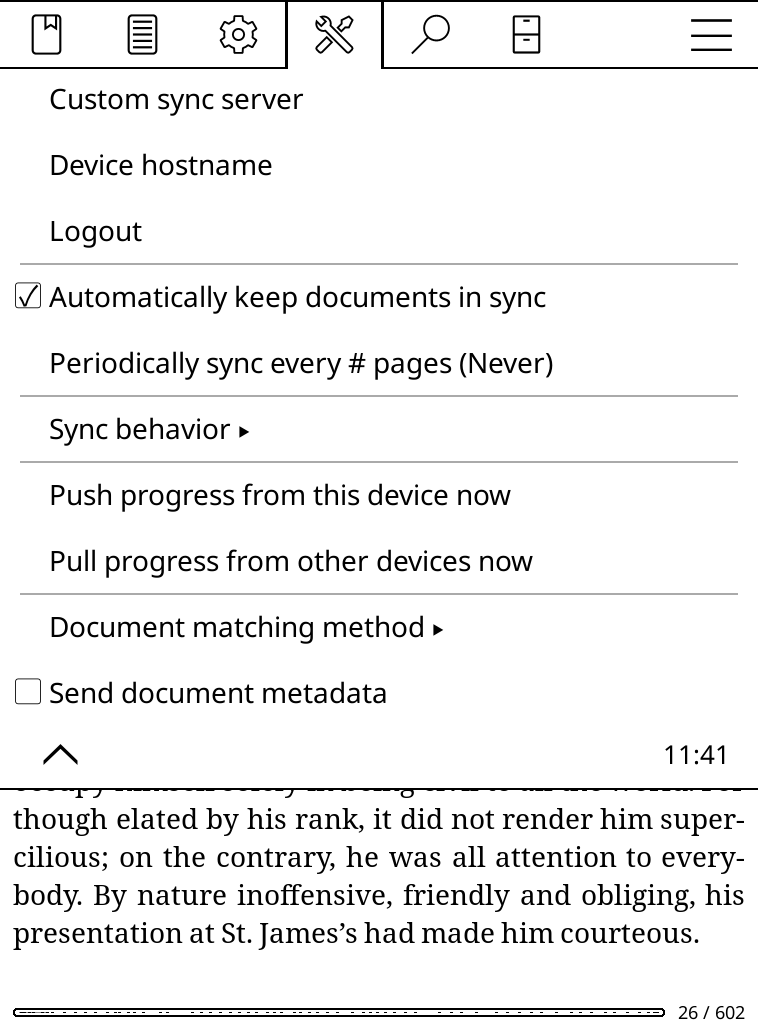
Open a book and go to Tools, then Progress sync. It should say Logout, which means it is signed in, with Automatically keep documents in sync ticked. Push progress from this device now sends it immediately.
The built-in catalog is a plain list of titles. OPDS Plus is an optional community plugin that replaces that browser with one showing covers, a grid view and series details. You don't need it for anything on this page. With it your series appear in reading order, and your folders, shelves and newest books get their own rows. Install it before you delete the setup folder and the setup adds your library to it as Liseur Sync. Otherwise add the address ending in /opds/v2 yourself, with the same login.
The manual setup lists the same settings to enter by hand. The ZIP's credentials.txt has every value.
It points Progress sync at your server and signs it in, adds Liseur Sync to the OPDS catalogs, and to OPDS Plus when that plugin is installed, and sets the KoInsight address. Other settings stay as they are. It runs once, so you can delete the folder after KoInsight is installed.