
Script Filters
Script filters allow external commands to provide dynamic results in the launcher using a subset of the Alfred Script Filter JSON format.
Overview
Section titled “Overview”Script filters execute external commands when a keyword is typed, displaying dynamic results based on the command’s JSON output. This enables integration with APIs, databases, custom scripts, and more.
Configuration
Section titled “Configuration”Configure script filters in your raffi.yaml:
addons:  script_filters:    - name: "Timezones"      keyword: "tz"      command: "batz"      args: ["-j"]      icon: "clock"
    - name: "Bookmarks"      keyword: "bm"      command: "my-bookmark-script"      args: ["-j"]      action: "echo -n {value}|wl-copy"      secondary_action: "xdg-open {value}"
Configuration Fields
Section titled “Configuration Fields”name string (required)
Display name shown during loading
keyword string (required)
Text that activates the script filter
command string (required)
Executable to run
args array
Arguments passed before the query
icon string
Fallback icon name for results without their own icon
action string (default: copy)
Action on Enter. Options:
"copy": Copy to clipboard"insert": Type into focused app via wtype/ydotool- Command template with
{value}placeholder (executed viash -c)
secondary_action string
Action on Ctrl+Enter. Accepts same values as action. If omitted, Ctrl+Enter behaves same as Enter.
JSON Format
Section titled “JSON Format”Script filters must output JSON matching this structure (subset of Alfred’s format):
{ "items": [ { "title": "New York", "subtitle": "EST (UTC-5) — 14:30", "arg": "America/New_York", "icon": { "path": "/usr/share/icons/clock.png" } }, { "title": "London", "subtitle": "GMT (UTC+0) — 19:30", "arg": "Europe/London" } ]}JSON Fields
Section titled “JSON Fields”title string (required)
Main text displayed for the item
subtitle string
Secondary text shown below the title
arg string
Value copied to clipboard (falls back to title if omitted)
icon.path string
Absolute path to a PNG or SVG icon
How It Works
Section titled “How It Works”-
Type Keyword
User types the configured keyword (e.g.,
tz) -
Execute Command
Script is executed with remaining input as final argument:
Terminal window batz -j "New York" -
Parse JSON
Raffi parses the JSON output from stdout
-
Display Results
Items are displayed in the launcher
-
Handle Selection
On Enter, the item’s
argvalue (ortitle) is used with the configured action
Actions
Section titled “Actions”Default Action (Copy)
Section titled “Default Action (Copy)”By default, selecting an item copies its value to the clipboard:
script_filters: - name: "Timezones" keyword: "tz" command: "batz" # Default action is "copy"Custom Actions
Section titled “Custom Actions”Define custom actions using command templates:
action: "echo -n {value}|wl-copy"action: "xdg-open {value}"action: "insert"action: "my-command --input {value}"Primary and Secondary Actions
Section titled “Primary and Secondary Actions”script_filters: - name: "Bookmarks" keyword: "bm" command: "bookmark-script" action: "echo -n {value}|wl-copy" # Enter: Copy URL secondary_action: "xdg-open {value}" # Ctrl+Enter: Open URLCopies bookmark URL to clipboard
Opens bookmark URL in browser
ANSI Color Support
Section titled “ANSI Color Support”The title and subtitle fields support ANSI color codes for colored text:
{ "items": [ { "title": "\u001b[32mSuccess\u001b[0m", "subtitle": "\u001b[90mCompleted at 14:30\u001b[0m" } ]}Examples
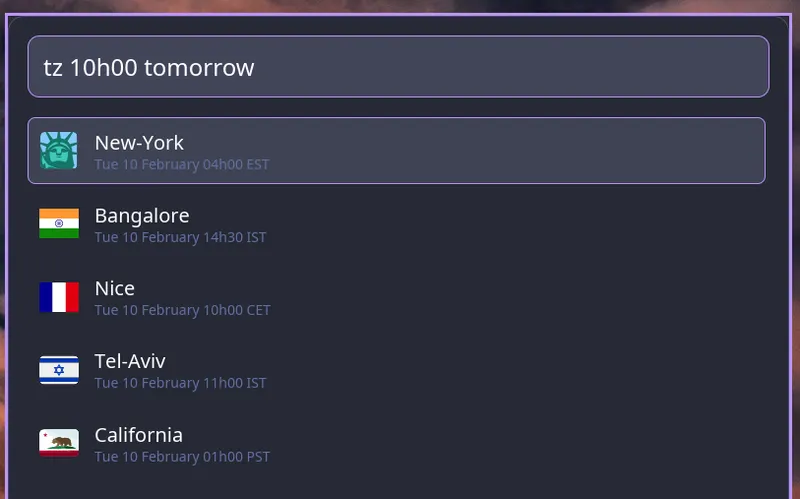
Section titled “Examples”Timezone Converter
Section titled “Timezone Converter”Using batz time converter:
script_filters: - name: "Timezones" keyword: "tz" command: "batz" args: ["-j"] icon: "clock"Usage:
tz New York# Shows current time in New York# Press Enter to copy timezone infoGitHub Pull Requests
Section titled “GitHub Pull Requests”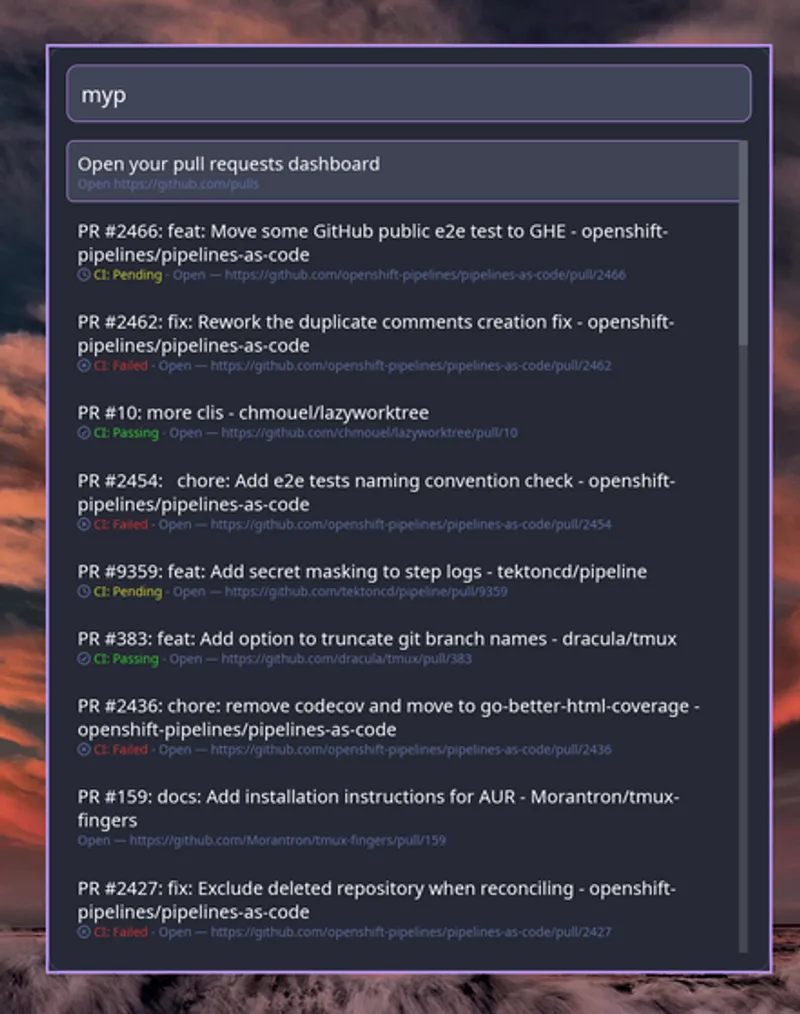
script_filters: - name: "Pull Requests" keyword: "pr" command: "gh-pr-script" args: ["-j"] icon: "github" action: "xdg-open {value}"Usage:
pr my-project# Lists pull requests for my-project# Press Enter to open PR in browserBookmark Manager
Section titled “Bookmark Manager”script_filters: - name: "Bookmarks" keyword: "bm" command: "bookmark-manager" args: ["--json"] icon: "bookmark" action: "echo -n {value}|wl-copy" secondary_action: "xdg-open {value}"Usage:
bm documentation# Filters bookmarks by "documentation"# Enter: Copy URL# Ctrl+Enter: Open in browserPassword Manager
Section titled “Password Manager”script_filters: - name: "Passwords" keyword: "pw" command: "pass-json" icon: "lock" action: "copy"Usage:
pw github# Shows password entries matching "github"# Press Enter to copy passwordWeb Search with Autocomplete
Section titled “Web Search with Autocomplete”The scripts/search/search.py script in the repository provides live DuckDuckGo autocomplete suggestions while opening results in any configured search engine.
Install it first:
mkdir -p ~/.config/raffi/scripts/searchcp scripts/search/search.py ~/.config/raffi/scripts/search/search.pychmod +x ~/.config/raffi/scripts/search/search.pyThen configure one entry per engine:
script_filters:  - name: "Search DuckDuckGo"    keyword: "ddg"    command: "python3"    args: ["~/.config/raffi/scripts/search/search.py", "duckduckgo"]    icon: "web-browser"    action: "xdg-open {value}"    secondary_action: "copy"
  - name: "Search Google"    keyword: "sg"    command: "python3"    args: ["~/.config/raffi/scripts/search/search.py", "google"]    icon: "google"    action: "xdg-open {value}"    secondary_action: "copy"
Supported engines: google, duckduckgo, bing, brave.
Usage:
ddg rust async# First item: raw query "rust async" → opens DuckDuckGo search# Remaining items: DDG autocomplete suggestions# Enter: open in browser# Ctrl+Enter: copy URL to clipboardCreating a Script Filter
Section titled “Creating a Script Filter”Here’s a simple example script in Python:
#!/usr/bin/env python3import jsonimport sys
query = sys.argv[1] if len(sys.argv) > 1 else ""
items = [    {        "title": f"Result for: {query}",        "subtitle": "This is a subtitle",        "arg": f"https://example.com/search?q={query}",        "icon": {"path": "/usr/share/icons/search.png"}    }]
print(json.dumps({"items": items}))
Make it executable and configure:
chmod +x my-filter.pyscript_filters: - name: "My Filter" keyword: "mf" command: "./my-filter.py" action: "xdg-open {value}"Keyboard Shortcuts
Section titled “Keyboard Shortcuts”- Enter: Execute primary action
- Ctrl+Enter: Execute secondary action (if configured)
- Esc: Cancel and return to normal mode
- ↑/↓: Navigate through results