
File Browser
The native interface includes a built-in file browser for quick filesystem navigation using keyboard shortcuts.
Overview
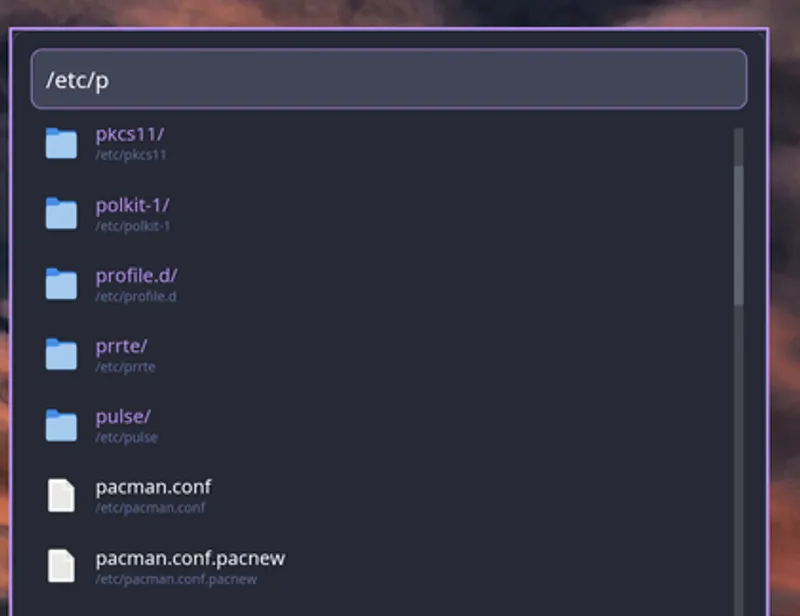
Section titled “Overview”Navigate your filesystem directly from the launcher with fuzzy filtering, hidden file support, and keyboard-driven actions.
Activation
Section titled “Activation”Start the file browser by typing one of these prefixes:
- Type
/to browse from the root filesystem - Type
~to browse from your home directory
Examples
Section titled “Examples”/ # Browse root directory~ # Browse home directory/home/user/ # Browse specific directory~/Documents/ # Browse Documents folderNavigation
Section titled “Navigation”Directory Structure
Section titled “Directory Structure”- Directories are listed first in accent color
- Files are listed after directories
- Current path shows in the input field
Keyboard Shortcuts
Section titled “Keyboard Shortcuts”| Key | Action |
|---|---|
| Enter | Navigate into directory OR open file with xdg-open |
| Alt+Enter | Copy file/directory path to clipboard |
| Tab | Autocomplete selected entry into search bar |
| Ctrl+H | Toggle hidden file visibility |
| Esc | Exit file browser |
| ↑/↓ | Navigate through results |
Fuzzy Filtering
Section titled “Fuzzy Filtering”Text after the last / fuzzy-filters the current directory listing:
/home/us# Filters /home/ by "us"# Matches: user, username, usr, etc.~/Documents/proj# Filters ~/Documents/ by "proj"# Matches: projects, my-project, old_projects, etc.~/Downloads/.pdf# Filters ~/Downloads/ by ".pdf"# Shows all PDF filesHidden Files
Section titled “Hidden Files”Control visibility of hidden files (dotfiles):
Press Ctrl+H to toggle hidden file visibility while browsing
addons: file_browser: enabled: true show_hidden: falseaddons: file_browser: enabled: true show_hidden: trueActions
Section titled “Actions”Open File
Section titled “Open File”- Navigate to file
- Press Enter
- File opens with
xdg-open(system default application)
~/Documents/report.pdf[Enter] → Opens PDF in default viewerNavigate Directory
Section titled “Navigate Directory”- Navigate to directory
- Press Enter
- Directory contents are displayed
~/Documents/[Enter] → Shows contents of Documents/Copy Path
Section titled “Copy Path”- Navigate to file or directory
- Press Alt+Enter
- Full path copied to clipboard
~/Documents/report.pdf[Alt+Enter] → Copies: /home/user/Documents/report.pdfAutocomplete
Section titled “Autocomplete”- Navigate to file or directory
- Press Tab
- Entry is autocompleted into search bar
Current: /home/usSelected: user/[Tab] → Input becomes: /home/user/Configuration
Section titled “Configuration”Configure the file browser in raffi.yaml:
addons: file_browser: enabled: true show_hidden: falseConfiguration Options
Section titled “Configuration Options”enabled boolean (default: true)
Enable or disable the file browser addon
show_hidden boolean (default: false)
Show hidden files (dotfiles) by default. Can be toggled at runtime with Ctrl+H.
Disable File Browser
Section titled “Disable File Browser”addons: file_browser: enabled: falseUse Cases
Section titled “Use Cases”Quick File Access
~/Downloads/# Type: latest# [Enter] to openCopy File Paths
~/Projects/myapp/src/# [Alt+Enter] to copy path# Paste into terminal or IDEBrowse Config Files
~/.config/# [Ctrl+H] to show hidden files# Navigate to: .bashrc, .vimrc, etc.# [Enter] to editProject Navigation
~/Projects/# Filter: myapp# [Enter] to navigate# Filter: src# [Tab] to autocompleteVisual Indicators
Section titled “Visual Indicators”- Directories — Listed first in accent color
- Files — Listed after directories in normal text
Requirements
Section titled “Requirements”Examples
Section titled “Examples”Navigate to Documents
Section titled “Navigate to Documents”-
Type Prefix
Type
~to start browsing home directory -
Filter
Type
Docto filter for Documents -
Navigate
Press Enter on Documents folder
-
Browse Files
See all files in ~/Documents/
Open Configuration File
Section titled “Open Configuration File”-
Go to Config
Type
~/.config/ -
Show Hidden
Press Ctrl+H if needed
-
Filter
Type filename to filter (e.g.,
raffor raffi) -
Open
Press Enter to open with default editor
Copy Script Path
Section titled “Copy Script Path”-
Navigate
Type
~/bin/or/usr/local/bin/ -
Find Script
Filter by name (e.g.,
my-script) -
Copy Path
Press Alt+Enter to copy full path
-
Use Path
Paste into terminal, config, or documentation