Navigation and Keybindings
This page focuses on the TUI layout, movement, pane control, search, and command invocation.
Use this page when: you are learning daily navigation patterns and keyboard flow in the TUI.
Interface Layout
The TUI is organised into five panes:
| Pane | Key | Content |
|---|---|---|
| Worktree List | 1 |
All Git worktrees with branch, note markers, and status indicators |
| Status / CI | 2 |
PR/MR info, CI check results, divergence status, and notes preview |
| Git Status | 3 |
Changed files in the selected worktree (collapsible tree view) |
| Commit Log | 4 |
Commit history for the selected branch |
| Notes | 5 |
Per-worktree notes (visible only when a note exists) |
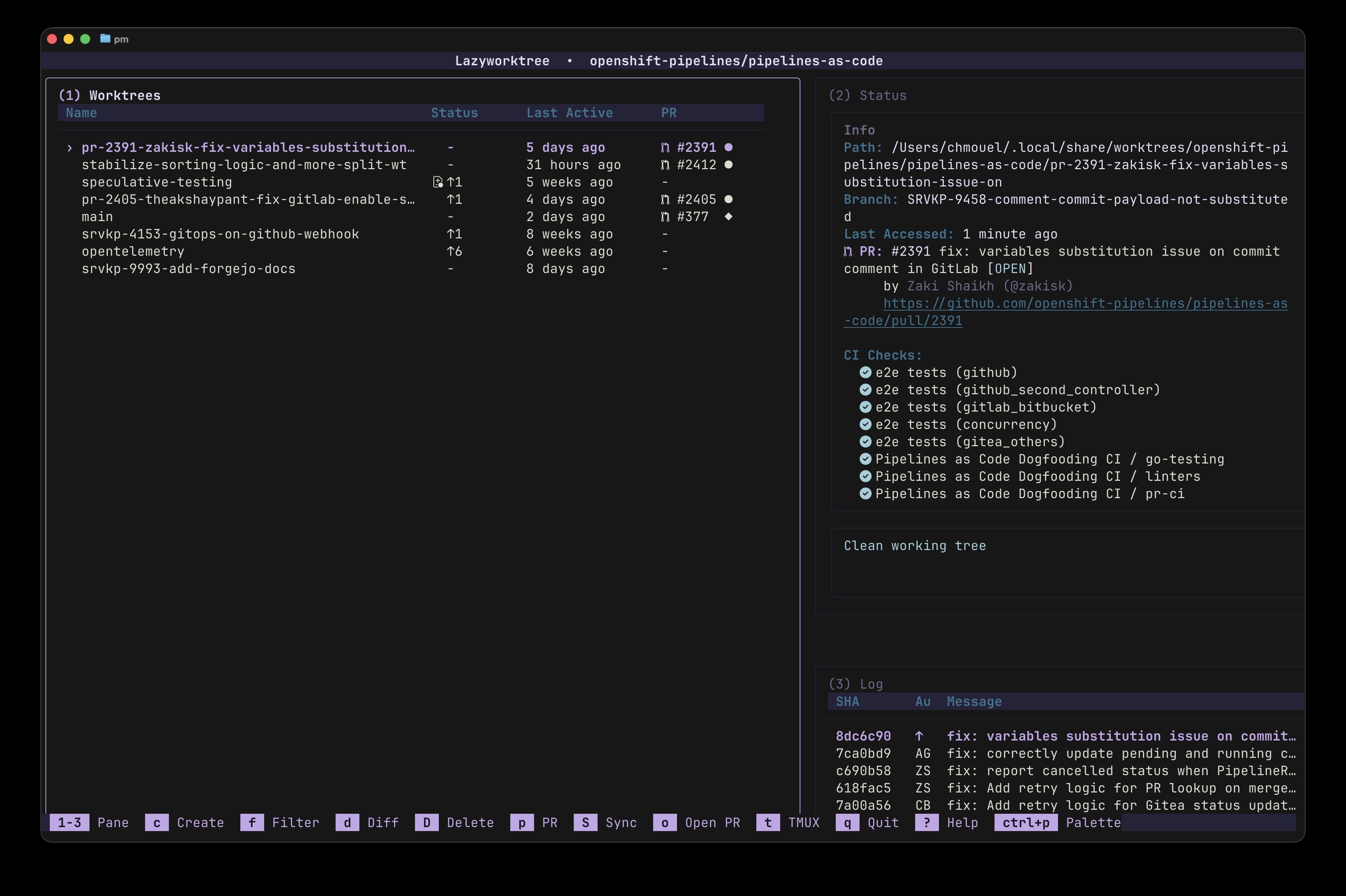
Layout Modes
Press L to toggle between two layout arrangements:
- Default layout — worktree list on the left, detail panes stacked on the right
- Top layout — alternative arrangement with a different pane distribution
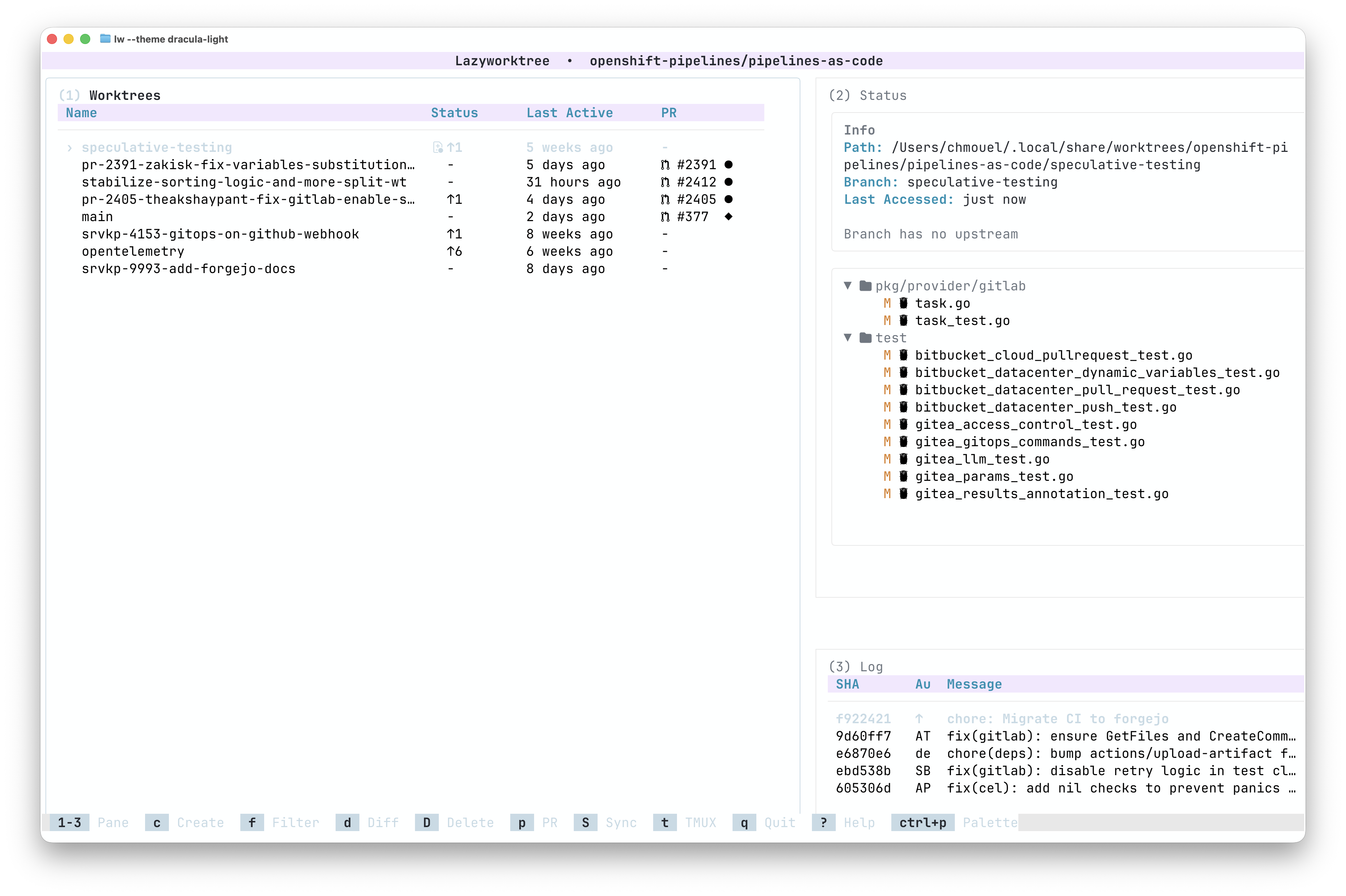
Zoom Mode
Press = to toggle zoom for the focused pane, expanding it to fill the entire screen. Pressing the number key for an already-focused pane also toggles zoom.
Global Navigation
| Key | Action |
|---|---|
j, k |
Move selection up/down |
Tab, ] |
Next pane |
[ |
Previous pane |
h, l |
Shrink / Grow worktree pane |
Home, End |
Jump to first/last item |
q |
Quit |
? |
Help |
Pane Focus and Layout
| Key | Action |
|---|---|
1..5 |
Focus specific panes |
= |
Toggle zoom for focused pane |
L |
Toggle layout (default / top) |
Pane-Specific Actions
Worktree Pane
Enter— jump to selected worktree (exits LazyWorktree and outputs the path)s— cycle sort mode: Path, Last Active (commit date), Last Switched (access time)I— set a custom icon for the selected worktree
Git Status Pane
Enter— toggle collapse/expand or show diffse— open file in editors— stage/unstage files or directoriesd— show full diff in pagerCtrl+←/Ctrl+→— jump between folders
Commit Pane
Enter— view commit's file treed— show full commit diff in pagerC— cherry-pick commit to another worktreeCtrl+j— move to next commit and open its file tree
Search and Filter
| Mode | Key | Behaviour |
|---|---|---|
| Filter | f |
Filter focused pane list |
| Search | / |
Incremental search in focused pane |
| Next match | n |
Move to next search match |
| Previous match | N |
Move to previous search match |
| Clear | Esc |
Clear active filter/search |
Tip
Filter mode works across worktrees, files, and commits. Use Alt+n/Alt+p to navigate matches whilst updating the filter input, or arrow keys to navigate without changing it.
Command Access
| Key | Action |
|---|---|
Ctrl+p, : |
Open command palette |
! |
Run arbitrary command in selected worktree |
g |
Open lazygit |
Clipboard Shortcuts
| Key | Action |
|---|---|
y |
Copy context-aware value (path/file/SHA) |
Y |
Copy selected worktree branch name |
Full Reference
For complete pane-by-pane key coverage, see Key Bindings Reference. For a guided icon customisation workflow, see Worktree Operations.