Display and Themes
Use these settings to control appearance, icon rendering, and layout behaviour.
Theme Selection
theme: explicit theme name- empty
theme: auto-detect based on terminal background - CLI override:
lazyworktree --theme <name>
Built-in themes and details:
Layout and Pane Arrangement
layout:defaultortop- runtime toggle:
L
Layout controls how worktree, status, git status, commit, and notes panes are arranged.
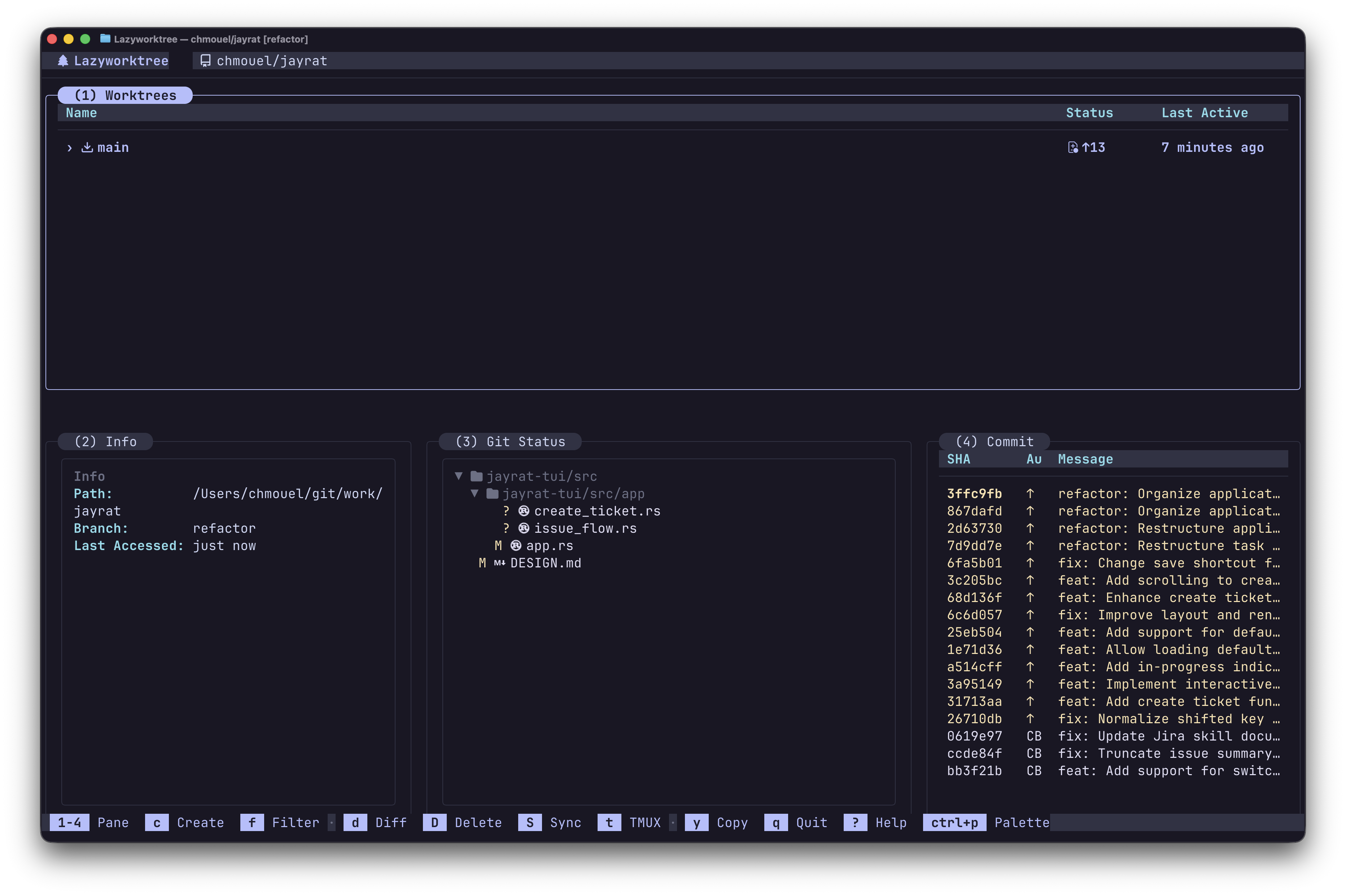
The top layout, showing panes arranged horizontally.
Custom Pane Sizes
Use layout_sizes to adjust how much screen space each pane receives.
Values are relative weights (1–100) that get normalised at computation time,
so info: 30, git_status: 30, commit: 30 means each gets one-third of the
secondary area.
layout_sizes:
  worktrees: 45    # Main pane width (default) or height (top layout)
  info: 30         # Info pane share of secondary area
  git_status: 30   # Git status pane share (when visible)
  commit: 30       # Commit log pane share
  notes: 30        # Notes pane share (when visible)
All fields are optional — omitted fields keep their built-in defaults. Focus-based dynamic resizing still applies on top of the configured baseline.
Tip: On smaller terminals, setting worktrees to a higher value such as 80
gives the worktree list more room whilst keeping the info and commit panes visible.
You can also resize the worktree pane at runtime with h (shrink) and l (grow).
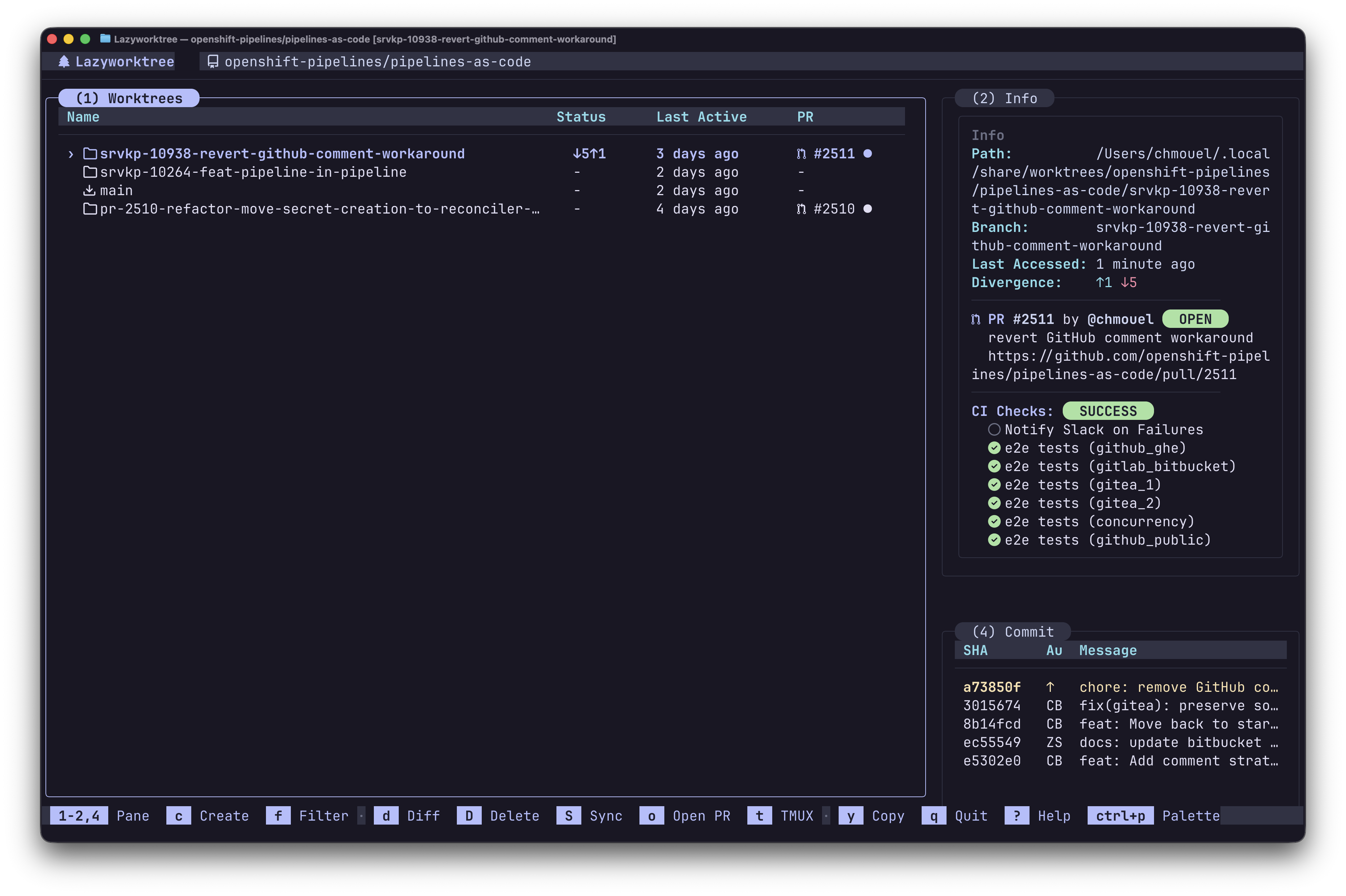
Worktree pane with worktrees: 80 — more space for the list on a compact screen.
Icon Rendering
icon_set:nerd-font-v3ortext
If glyphs render incorrectly, use text or install a patched Nerd Font.
Name Truncation
max_name_length: max display width for worktree names- set to
0to disable truncation